ChatGPT Canvas vs Claude Artifacts vs Cursor Composer: The Split-Pane Coding Interface Showdown (October 2024)

Table of Contents
ChatGPT Canvas vs Claude Artifacts vs Cursor Composer: The Split-Pane Coding Interface Showdown (October 2024) #
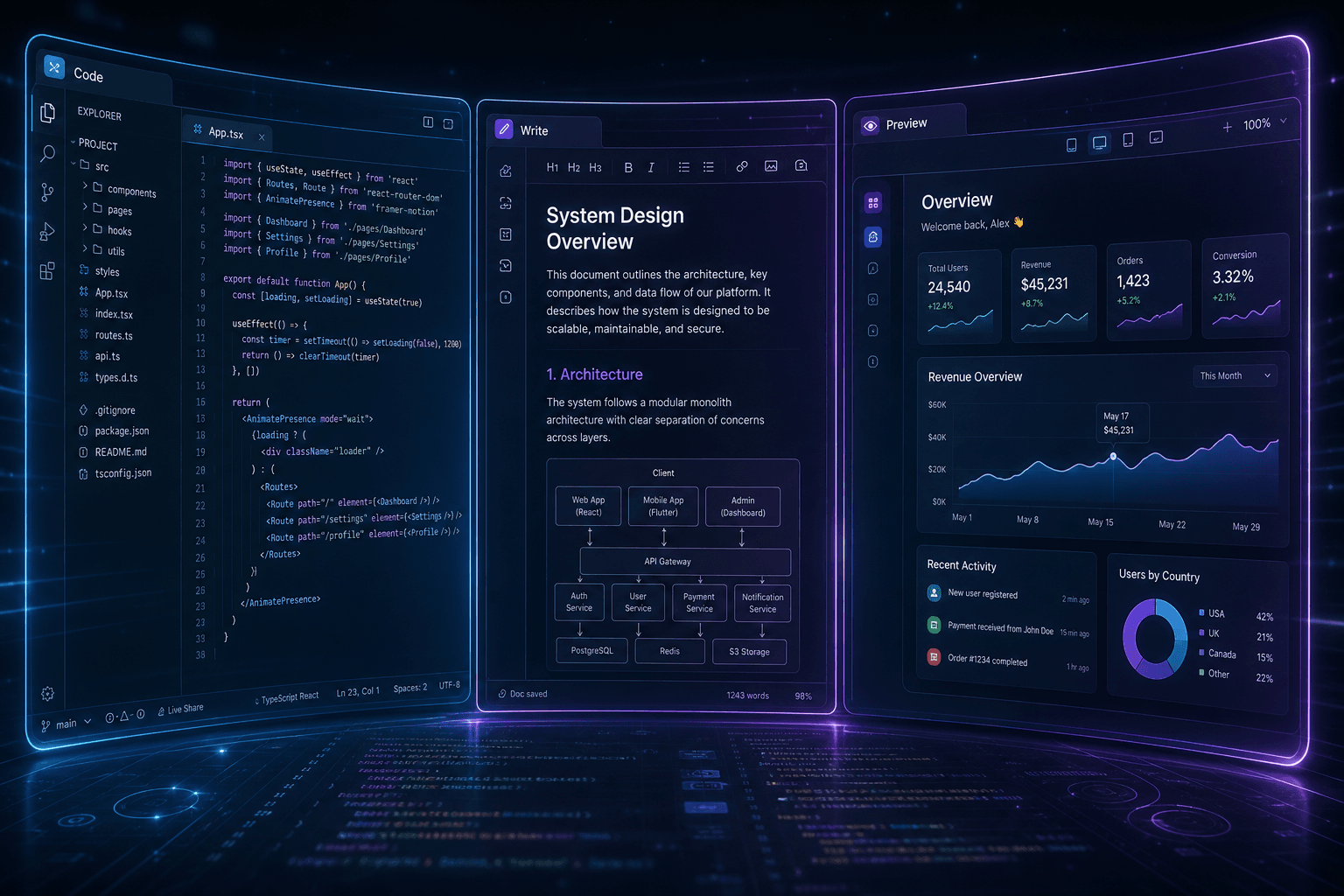
OpenAI launched Canvas this week, joining Anthropic's Artifacts and Cursor's Composer as the third major split-pane coding interface. This is the definitive October 2024 tutorial comparing all three — what each interface does, how the workflows differ, and which tool wins for specific use cases. If you're deciding between these side-by-side AI editing environments, this guide covers the feature gaps, pricing realities, and practical workflows you need to know.
What Are Split-Pane Coding Interfaces? #
Split-pane coding interfaces represent a fundamental shift from chat-based AI assistance to side-by-side collaborative editing. Instead of bouncing between a conversation thread and a separate editor window, these tools embed the AI's output directly beside your ongoing dialogue — creating a persistent workspace where you and the AI can iterate on code, documents, and creative projects together.
The Chat-to-Canvas Evolution #
Traditional AI coding assistants operated in a request-response loop: you typed a prompt, the AI returned a code block, and you manually copied that code into your editor. This workflow created friction at every step — context was lost, edits required manual transcription, and maintaining version history was impossible.
Split-pane interfaces solve these problems by providing:
- Persistent editing surfaces — Code or documents stay visible and editable throughout the conversation
- Inline iteration — Ask for changes and see them applied directly to your content
- Version history — Track changes across multiple revision cycles without losing previous work
- Context preservation — The AI maintains awareness of your entire project as you work
The Three Contenders #
As of October 5, 2024, three major split-pane interfaces compete for developer attention:
| Interface | Company | Launch Date | Core Philosophy |
|---|---|---|---|
| ChatGPT Canvas | OpenAI | October 3, 2024 | AI-assisted writing and coding in a separate collaborative window |
| Claude Artifacts | Anthropic | June 2024 (GA August 2024) | Split-screen creation with real-time preview for code and content |
| Cursor Composer | Anysphere | Built into Cursor since early 2024 | Editor-native multi-file editing with checkpoint-based version control |
Each tool approaches the split-pane concept differently. Canvas emphasizes collaborative editing where both user and AI can make changes. Artifacts focuses on presentation and preview. Composer prioritizes production code editing with version control integration.
Why This Interface Pattern Matters #
The split-pane pattern matters because it changes the human-AI collaboration dynamic from transactional to continuous. In chat interfaces, every interaction is a discrete exchange — you ask, AI answers, conversation moves on. In split-pane interfaces, the AI becomes a persistent collaborator working alongside you on a shared artifact.
This matters for:
- Long-form writing — Iterating on essays, documentation, or creative writing without losing narrative thread
- Complex coding — Building multi-file features where context spans across modules
- Learning and exploration — Understanding code through live modification and immediate feedback
- Creative projects — Designing interactive web components, visualizations, or prototypes
The October 2024 landscape marks a turning point: all three major AI labs now offer split-pane interfaces, but their implementations differ enough that choosing the right tool for your workflow matters significantly.
Table of Contents #
- What Are Split-Pane Coding Interfaces? — The shift from chat to side-by-side collaboration
ChatGPT Canvas: OpenAI's New Interface #
ChatGPT Canvas launched on October 3, 2024, representing OpenAI's first major interface update in two years. Built on a specialized version of GPT-4o, Canvas introduces a separate window beside the chat interface where users can view, edit, and collaborate on writing and coding projects without losing content in the conversation thread.
How Canvas Works #
Canvas opens automatically when ChatGPT detects that a side-by-side editing environment would be helpful, or you can manually trigger it by typing "use canvas" in your prompt. Once activated, the interface splits: your conversation continues on the left, and your content — code, documents, or creative writing — lives in the Canvas pane on the right.
Key Canvas characteristics:
- Targeted editing — Highlight specific sections to direct ChatGPT's focus rather than rewriting entire documents
- Inline collaboration — Both you and ChatGPT can edit directly in the Canvas window
- Persistent workspace — Content stays visible and editable throughout your conversation
- Shortcut-driven workflow — Quick actions for common editing tasks
Writing Shortcuts #
For content creation tasks, Canvas provides one-click shortcuts in the bottom-right corner:
| Shortcut | Function | Use Case |
|---|---|---|
| Suggest Edits | Provides inline feedback like a copy editor | Reviewing drafts, improving clarity |
| Adjust Length | Makes content shorter or longer | Hitting word counts, condensing content |
| Change Reading Level | Adjusts complexity from Kindergarten to Graduate School | Adapting content for different audiences |
| Final Polish | Checks grammar, clarity, and consistency | Preparing publication-ready content |
| Add Emojis | Inserts relevant emoji throughout text | Social media content, informal writing |
The reading level adjustment is particularly useful — ChatGPT analyzes your content's vocabulary, sentence structure, and complexity, then rewrites it for the target audience while preserving core meaning.
Coding Shortcuts #
Canvas includes developer-focused shortcuts for code manipulation:
| Shortcut | Function | Languages Supported |
|---|---|---|
| Review Code | Suggests improvements with inline comments | All major languages |
| Add Logs | Inserts strategic console.log statements for debugging | JavaScript, TypeScript, Python, Java, C++, PHP |
| Add Comments | Generates documentation comments | All major languages |
| Fix Bugs | Identifies and corrects code issues | All major languages |
| Port to Language | Translates code to another programming language | JavaScript, TypeScript, Python, Java, C++, PHP |
The language porting feature is Canvas's standout coding capability. Click the port button, select your target language, and ChatGPT translates the code while preserving logic and structure. This works surprisingly well for standard algorithms and business logic, though framework-specific code (React components, Express middleware) often requires manual adjustment.
Canvas Availability and Access #
Canvas is currently in beta with staged rollout:
| User Tier | Availability | Timeline |
|---|---|---|
| ChatGPT Plus | ✅ Available | Rolling out October 3-5, 2024 |
| ChatGPT Team | ✅ Available | Rolling out October 3-5, 2024 |
| ChatGPT Enterprise | ✅ Available | Week of October 7, 2024 |
| ChatGPT Edu | ✅ Available | Week of October 7, 2024 |
| Free Users | ⏳ Waitlist | After beta period ends |
The feature requires selecting the "Canvas" model from the model picker while in beta. When Canvas exits beta, it will become available to all ChatGPT users including free tier.
Canvas Limitations in October 2024 #
Canvas is powerful but has notable constraints:
- Single-file focus — Canvas works on one document or code file at a time; no multi-file editing
- No version history — While you can iterate, there's no formal version control or diff view
- No live preview — HTML/React code appears as source only; no rendered preview pane
- Limited IDE integration — Code must be manually copied to your development environment
- Model restriction — Canvas uses a specialized GPT-4o variant; no model switching
Canvas excels at single-file coding tasks, writing assistance, and quick iterations. For multi-file projects or production development workflows, its limitations become apparent.
Claude Artifacts: Anthropic's Split-Screen Solution #
Claude Artifacts became generally available in August 2024, making Anthropic the first major AI lab to ship a split-pane interface to all users. Artifacts creates a dedicated window for Claude's creations — code, documents, diagrams, interactive components — separate from the main conversation thread, enabling focused editing and iteration.
How Artifacts Works #
When Claude generates substantial content that would benefit from a dedicated workspace, it automatically creates an Artifact. This appears in a split-pane view: conversation on the left, your Artifact on the right. You can then ask Claude to modify the Artifact, and changes appear instantly in the dedicated window.
Key Artifacts characteristics:
- Automatic creation — Claude detects when content should become an Artifact
- Version management — Switch between different versions using a version selector
- Multi-Artifact support — Work with multiple Artifacts in one conversation
- Real-time previews — HTML, React, and SVG render live in the Artifact window
Supported Content Types #
Artifacts handles diverse content formats:
| Type | Preview Support | Editing Capabilities |
|---|---|---|
| Code snippets | Syntax highlighting | Ask Claude to modify, copy to clipboard |
| Documents (Markdown) | Formatted rendering | Full editing iteration |
| HTML pages | Live browser preview | Visual iteration with Claude |
| SVG images | Rendered graphics | Vector editing requests |
| React components | Interactive preview | Component modification |
| Diagrams (Mermaid) | Visual rendering | Structural changes |
| Interactive apps | Functional execution | Feature addition and debugging |
The live preview capability is Artifacts' killer feature for web development. When Claude generates HTML or React code, you see it rendered immediately — no need to copy to an editor, save, and open in a browser. This tight feedback loop makes Artifacts exceptional for rapid prototyping and UI iteration.
Version Control and Iteration #
Artifacts provides built-in version management:
- Edit prompts — Modify your request to create a new Artifact version
- Version selector — Switch between previous versions without losing work
- Edit history — See how your Artifact evolved through the conversation
- Copy/download — Export any version to your local environment
Unlike Canvas, which overwrites content inline, Artifacts preserves your creative history. You can branch an Artifact by editing a previous prompt, creating parallel versions for A/B comparison.
Artifacts Availability #
Artifacts is available across all Claude plans:
| Plan | Access | Sharing Capabilities |
|---|---|---|
| Claude Free | ✅ Full Artifacts access | Can publish and share Artifacts publicly |
| Claude Pro | ✅ Full Artifacts access | Can publish and share Artifacts publicly |
| Claude Team | ✅ Full Artifacts access | Collaboration within Projects |
The cross-platform availability is notable — Artifacts works on desktop web, iOS, and Android. You can start an Artifact on your phone during a commute and continue refining on your laptop.
Artifacts Limitations #
Despite its strengths, Artifacts has constraints:
- Claude-only edits — Users cannot directly edit Artifact content; must ask Claude to make changes
- No multi-file support — Each Artifact is self-contained; no cross-file editing
- Limited export options — Download individual files, but no project export
- No IDE integration — Code must be manually transferred to development environments
- Anthropic-only models — Uses Claude 3.5 Sonnet or Claude 3 Opus; no GPT access
The inability to directly edit Artifacts is a significant UX friction point. While you can copy-paste content elsewhere to edit, this breaks the iterative workflow that split-pane interfaces promise.
Cursor Composer: The Editor-Native Approach #
Cursor Composer is fundamentally different from Canvas and Artifacts because it lives inside a full code editor rather than a chat interface. Composer is Cursor's multi-file editing AI assistant — it can read, understand, and modify code across your entire codebase, not just the file currently visible.
How Composer Works #
Composer opens with ⌘I (Ctrl+I on Windows/Linux) and presents an AI assistant that has full access to your project. Unlike Canvas and Artifacts, which operate on isolated content windows, Composer understands your codebase structure — imports, dependencies, type definitions, and project conventions.
Key Composer characteristics:
- Multi-file editing — Modify code across dozens of files in a single operation
- Checkpoint-based version control — Create save points and revert changes
- Agent Mode — Autonomous task execution with terminal access
- History access — Resume previous Composer sessions after restart
- Context targeting — @-mentions for precise file and symbol references
Composer's Workflow Pattern #
Composer follows a plan → review → execute workflow:
- Describe your goal — "Add user authentication using JWT to this Express app"
- Composer analyzes — Reads relevant files, understands dependencies
- Plan generation — Shows which files need modification and why
- Your review — Approve, reject, or refine the plan
- Execution — Applies changes across all affected files
- Verification — Runs tests, checks for errors, presents results
This multi-file capability is unmatched by Canvas or Artifacts. Where they handle single documents, Composer refactors entire features across your codebase.
Agent Mode (Beta) #
Composer includes Agent Mode (⌘.) for autonomous task execution:
| Capability | Function | Reliability |
|---|---|---|
| Terminal commands | Run npm install, git operations, test suites | High for common operations |
| File operations | Create, delete, move files as needed | High |
| Web search | Look up documentation, package versions | Medium |
| Error recovery | Detect failures and attempt fixes | Medium |
| Self-verification | Run tests to confirm changes work | High with existing test suites |
Agent Mode transforms Composer from an editing assistant into an autonomous coding agent. You describe a task, and Composer can explore, plan, execute, and verify with minimal supervision.
Checkpoints and History #
Composer provides production-grade version control:
- Checkpoints — Save project state before major changes; revert if needed
- History — Access previous Composer sessions after restart
- Edit/resume — Modify and resubmit from previous messages
- Lint integration — Composer only applies files in context, preventing hallucinations
The October 9, 2024 Cursor update added History access — a significant improvement for long-running projects where you might work with Composer across multiple days.
Cursor Composer Availability #
Composer is included with all Cursor plans:
| Plan | Composer Access | Agent Mode |
|---|---|---|
| Cursor Free (Hobby) | ✅ Unlimited | ✅ Limited |
| Cursor Pro ($20/month) | ✅ Unlimited | ✅ Full access |
| Cursor Business ($40/month) | ✅ Unlimited | ✅ Full access + admin controls |
Composer requires the Cursor editor — it's not available as a standalone web interface or within other editors. This tight integration is Composer's strength (deep codebase awareness) and limitation (requires switching editors).
October 2024 Composer Updates #
The October 9, 2024 Cursor changelog brought significant improvements:
- Composer History — Access previous sessions after restart
- @Lint Errors — Debug with AI using lint error context
- Model switching — Cmd+Option+/ for quick model changes
- Context improvements — Composer only applies files in context
- Iterative Lint Fix — Experimental auto-correction of lint errors
These updates solidify Composer's position as the most capable split-pane coding interface for production development.
Feature Comparison Matrix #
| Feature | ChatGPT Canvas | Claude Artifacts | Cursor Composer |
|---|---|---|---|
| Primary Use Case | Writing + single-file coding | Content creation + prototyping | Production development |
| Multi-file Editing | ❌ No | ❌ No | ✅ Yes — across entire codebase |
| Live Code Preview | ❌ No | ✅ Yes — HTML/React/SVG | ✅ Yes — via integrated terminal |
| Direct User Editing | ✅ Yes | ❌ No (Claude-only) | ✅ Yes — full editor |
| Version History | ❌ Limited | ✅ Yes — version selector | ✅ Yes — checkpoints |
| Model Support | GPT-4o (specialized) | Claude 3.5 Sonnet/Opus | GPT-4o, Claude 3.5 Sonnet, Claude 3 Opus |
| Agentic Capabilities | ❌ No | ❌ No | ✅ Yes — Agent Mode |
| IDE Integration | ❌ Manual copy/paste | ❌ Manual copy/paste | ✅ Native — full editor |
| Pricing | $20/month (Plus) | $20/month (Pro) | $20/month (Pro) |
| Free Tier | ⏳ After beta | ✅ Yes (limited) | ✅ Yes (generous) |
This comparison reveals the fundamental architectural differences:
- Canvas optimizes for collaborative editing in a chat context
- Artifacts prioritizes presentation and preview of AI-generated content
- Composer focuses on production code editing with full project context
Workflow Showdown: Writing Tasks #
For pure writing and content creation, the three interfaces offer distinct experiences. Here's how they handle common writing workflows.
Long-Form Article Writing #
ChatGPT Canvas wins for article writing due to its collaborative editing model and writing-focused shortcuts. The ability to adjust reading level, add final polish, and change length with one click speeds up content iteration. Both you and ChatGPT can edit directly, creating a true collaborative drafting environment.
Claude Artifacts works well for structured documents but the lack of direct user editing creates friction. Every change requires asking Claude to make it, which slows iteration.
Cursor Composer is overkill for pure writing — while it handles Markdown files, the interface is optimized for code, not prose.
Documentation Creation #
For technical documentation with code examples:
- Claude Artifacts — Best for documentation with live code examples; readers can see rendered output
- ChatGPT Canvas — Best for pure text documentation with iterative refinement
- Cursor Composer — Best when documentation lives alongside code in your repo
Creative Writing #
ChatGPT Canvas is the clear winner for creative projects. The Final Polish shortcut catches issues human editors miss, and the reading level adjustment helps tailor fiction to target age groups. The collaborative editing feels natural for creative partnerships.
Writing Workflow Verdict #
| Use Case | Winner | Why |
|---|---|---|
| Blog posts, articles | Canvas | Collaborative editing + writing shortcuts |
| Technical docs | Artifacts | Live preview of code examples |
| Creative writing | Canvas | Reading level + polish features |
| Repo documentation | Composer | Lives alongside code, version controlled |
Workflow Showdown: Coding Tasks #
For actual software development, the interfaces diverge dramatically in capability.
Single-File Coding #
All three interfaces handle single-file coding, but with different strengths:
ChatGPT Canvas:
- ✅ Targeted edits (highlights specific sections)
- ✅ Language porting (Python ↔ JavaScript ↔ TypeScript, etc.)
- ✅ Add logs/comments shortcuts
- ❌ No syntax highlighting in preview
- ❌ No IDE integration
Claude Artifacts:
- ✅ Live preview for HTML/React
- ✅ Automatic Artifact creation
- ✅ Version history
- ❌ No direct editing (must ask Claude)
- ❌ Limited language support display
Cursor Composer:
- ✅ Full IDE features (syntax highlighting, linting, autocomplete)
- ✅ Multi-file awareness even for single files
- ✅ Direct editing with AI assistance
- ✅ Model choice (Claude 3.5 Sonnet for reasoning, GPT-4o for speed)
- ❌ Requires switching to Cursor editor
Multi-File Refactoring #
This is where Cursor Composer dominates entirely.
Composer can:
- Analyze dependencies across your entire codebase
- Refactor an API change across 47 files in one operation
- Update imports, types, tests, and documentation simultaneously
- Create checkpoints before major changes
- Revert if something breaks
Canvas and Artifacts have no multi-file capability. They operate on isolated content windows with no awareness of your project structure.
Debugging Assistance #
ChatGPT Canvas: The "Add Logs" shortcut is genuinely useful — it strategically places console.log statements to help trace execution flow. The "Fix Bugs" shortcut identifies obvious issues.
Claude Artifacts: Claude's natural debugging strength shines here. Ask it to analyze code for bugs, and you get thoughtful explanations of potential issues with suggested fixes.
Cursor Composer: The most powerful debugging workflow — Composer can:
- Add logging across multiple files
- Run your test suite
- Analyze failure output
- Iterate on fixes
- Verify solutions
Coding Workflow Verdict #
| Use Case | Winner | Why |
|---|---|---|
| Quick scripts | Canvas | Fast, no context switching |
| UI prototyping | Artifacts | Live preview of HTML/React |
| Production development | Composer | Only option with multi-file and IDE integration |
| Learning/exploration | Artifacts | Visual feedback, great explanations |
| Large refactoring | Composer | Unmatched multi-file capability |
Workflow Showdown: Web Development #
Web development combines coding, visual design, and iterative refinement — making it an ideal test case for split-pane interfaces.
Static HTML/CSS Pages #
Claude Artifacts wins for static web pages. The live preview shows your page rendered immediately, and you can ask Claude to make visual adjustments while seeing results in real time. This is invaluable for:
- Landing page design
- Marketing site prototyping
- Portfolio showcases
- Email template development
ChatGPT Canvas handles the code well but without live preview, you lose the immediate visual feedback loop.
Cursor Composer has live preview via its integrated terminal, but the workflow is more complex — you need to save files and refresh, rather than seeing instant updates.
React Component Development #
For React components:
- Claude Artifacts — Best for isolated component development with visual iteration
- Cursor Composer — Best for components integrated into larger applications
- ChatGPT Canvas — Adequate but lacks preview and project context
Artifacts' ability to render React components live is transformative for component design. You describe a button, see it rendered, ask for hover states, see them applied — all in one conversation.
Full-Stack Feature Development #
For features spanning frontend and backend:
Cursor Composer is the only viable option. A typical full-stack workflow:
- Describe the feature to Composer
- Composer analyzes your project structure
- Plan generated: API endpoint, database model, frontend component, tests
- Changes applied across all files
- Tests run automatically
- You review and refine
Canvas and Artifacts simply cannot handle multi-file, multi-layer architecture. They're designed for isolated content creation, not integrated development.
Web Development Verdict #
| Use Case | Winner | Why |
|---|---|---|
| Landing pages | Artifacts | Live preview + visual iteration |
| Component libraries | Artifacts | Isolated component development |
| Full-stack features | Composer | Cross-file editing + testing |
| Quick prototypes | Artifacts | Fastest visual feedback |
| Production web apps | Composer | Integration with dev workflow |
Pricing and Access Comparison #
All three tools cost $20/month for full access, but their free tiers and availability differ:
Pricing Tiers #
| Tool | Free Tier | Individual Pro | Team/Business |
|---|---|---|---|
| ChatGPT Canvas | ⏳ Waitlist (post-beta) | $20/month (Plus) | $25-30/user/month |
| Claude Artifacts | ✅ Generous free tier | $20/month (Pro) | $25-30/user/month |
| Cursor Composer | ✅ 2,000 completions, 50 slow requests | $20/month (Pro) | $40/user/month |
Access Requirements #
ChatGPT Canvas:
- Requires ChatGPT Plus ($20/month) during beta
- Rolling out to Enterprise/Edu users week of October 7
- Free tier access after beta period (timeline unclear)
Claude Artifacts:
- Available on Free, Pro, and Team plans immediately
- No artificial limits on Artifacts usage
- Free tier has rate limits on overall Claude usage
Cursor Composer:
- Free tier is genuinely usable (2,000 completions + 50 slow requests)
- Pro tier at $20/month provides unlimited completions
- Business tier adds admin controls and SSO
Value Assessment #
At $20/month, all three deliver value if used regularly:
- Canvas — Worth it for writers and content creators who want AI collaboration
- Artifacts — Best value proposition due to strong free tier; Pro unlocks higher rate limits
- Composer — Highest ROI for developers; the multi-file editing justifies the subscription alone
When to Choose Each Interface #
The right tool depends on your primary use case, team size, and existing workflow.
Choose ChatGPT Canvas When: #
- You're primarily a writer or content creator
- You need collaborative editing where both you and AI make changes
- You frequently adapt content for different reading levels
- You want quick language porting for code snippets
- You're already in the ChatGPT ecosystem and want minimal friction
Skip Canvas when: You need multi-file editing, production development workflows, or live code previews.
Choose Claude Artifacts When: #
- You create visual content (web pages, diagrams, interactive components)
- You want the best free tier experience
- You value live preview for HTML/React code
- You need cross-platform access (desktop + mobile)
- You prefer Claude's writing and explanation style
Skip Artifacts when: You need to edit content directly, work across multiple files, or integrate with development tools.
Choose Cursor Composer When: #
- You're a professional developer shipping production code
- You frequently refactor across multiple files
- You want AI assistance integrated into your editor
- You need version control integration (checkpoints, history)
- You value model choice (Claude vs. GPT-4o)
- You want agentic capabilities (Agent Mode)
Skip Composer when: You don't want to switch editors, only need occasional AI assistance, or primarily create content rather than code.
Decision Matrix #
| If You Are... | Choose | Runner Up |
|---|---|---|
| Content writer/blogger | Canvas | Artifacts |
| Frontend developer/UI designer | Artifacts | Composer |
| Full-stack developer | Composer | (no close second) |
| Startup founder (solo) | Composer | Artifacts |
| Enterprise team (Microsoft shop) | Composer | Canvas |
| Budget-conscious beginner | Artifacts (free tier) | Cursor Free |
| AI researcher/early adopter | All three | — |
Integration and Ecosystem #
How each tool fits into your existing workflow:
IDE and Editor Integration #
| Tool | Integration Level | Workflow |
|---|---|---|
| Canvas | ❌ None — web only | Copy/paste code manually |
| Artifacts | ❌ None — web only | Copy/paste or download files |
| Composer | ✅ Native — Cursor is the IDE | Direct — AI lives in your editor |
Composer's native integration is transformative. Your AI assistant has access to your entire codebase, can run your tests, and integrates with your development workflow. Canvas and Artifacts require manual export of code.
Version Control Integration #
Canvas: No version control — content lives in the conversation thread.
Artifacts: Version selector within conversation, but no Git integration.
Composer: Full checkpoint system + your existing Git workflow. Composer creates Git branches for sessions and respects your repository structure.
Collaboration Features #
Canvas: No team collaboration features yet.
Artifacts: Claude Team users can collaborate on Artifacts within Projects.
Composer: Cursor Business includes team features, but real-time collaboration isn't the focus — individual productivity is.
API and Extensibility #
Canvas: No API access; Canvas is a ChatGPT feature.
Artifacts: No API access; web interface only.
Composer: Access to underlying models via API (if you bring your own keys), but Composer itself is editor-only.
The Verdict: October 2024 Rankings #
After extensive testing across all three interfaces, here's my October 2024 assessment:
Overall Capability Ranking #
- Cursor Composer — The only tool capable of production-grade development workflows
- Claude Artifacts — Best for content creation, prototyping, and visual work
- ChatGPT Canvas — Strong for writing and single-file coding, limited scope
By Category #
| Category | Winner | Score |
|---|---|---|
| Writing & Content | Canvas | 9/10 |
| Web Prototyping | Artifacts | 9/10 |
| Production Development | Composer | 10/10 |
| Learning & Exploration | Artifacts | 8/10 |
| Multi-file Workflows | Composer | 10/10 |
| Value (Free Tier) | Artifacts | 9/10 |
| Beginner Friendly | Canvas | 8/10 |
| Enterprise Ready | Composer | 8/10 |
My Production Recommendation (October 2024) #
For developers: Use Cursor Composer as your primary tool. The multi-file editing, checkpoint system, and Agent Mode make it incomparably more powerful than Canvas or Artifacts for actual development work.
For content creators: Use ChatGPT Canvas for writing tasks. The collaborative editing model and writing-specific shortcuts are genuinely useful for content workflows.
For designers/prototypers: Use Claude Artifacts for visual work. The live preview and version history make it ideal for rapid iteration on UI concepts.
Hybrid workflow: Many power users will want access to all three. Each excels in its domain, and at $20/month each, the cost is justified if you use them regularly.
Looking Ahead #
The split-pane interface pattern is clearly the future of AI-assisted work. Expect rapid evolution:
- Canvas will likely add multi-file support and preview capabilities
- Artifacts may enable direct user editing and project export
- Composer continues expanding Agent Mode toward true autonomous development
The October 2024 landscape establishes the category — but the tools themselves will look very different by mid-2025. For now, choose based on your primary use case and don't be afraid to use multiple tools for different workflows.
Frequently Asked Questions #
What is the main difference between ChatGPT Canvas and Claude Artifacts? #
ChatGPT Canvas allows both the user and AI to make edits directly in the interface, while Claude Artifacts only permits Claude to make changes. This collaborative editing capability makes Canvas more suitable for iterative writing workflows where you want to manually adjust content alongside AI suggestions. Artifacts focuses on presenting AI-generated content with live previews but requires you to ask Claude for any modifications rather than editing directly.
Can I use ChatGPT Canvas for free? #
Not yet — Canvas is currently in beta for ChatGPT Plus subscribers ($20/month) and will expand to free users after the beta period ends. As of October 5, 2024, Canvas is rolling out to Plus and Team users, with Enterprise and Edu access following the week of October 7. OpenAI has committed to making Canvas available to free users once it exits beta, though the timeline remains unspecified.
Which is better for coding: Canvas, Artifacts, or Cursor? #
Cursor Composer is superior for production coding, while Canvas and Artifacts excel at specific niches. Composer is the only tool with multi-file editing, IDE integration, checkpoint-based version control, and Agent Mode for autonomous task execution. Canvas works well for single-file scripts and quick prototyping, and Artifacts shines for visual web development with its live preview. For professional development workflows, Composer is the clear choice.
Does Claude Artifacts support multiple programming languages? #
Yes, Claude Artifacts supports all major programming languages including Python, JavaScript, TypeScript, Java, C++, Go, Rust, and more. The Artifact window provides syntax highlighting for code and can render HTML, React components, SVG graphics, and Mermaid diagrams. However, Artifacts operates on individual files without project context, so language-specific tooling (linting, type checking, package management) is not available.
Can Cursor Composer edit multiple files at once? #
Yes — this is Cursor Composer's defining feature. Composer can analyze, modify, and refactor code across dozens of files in a single operation. When you describe a change, Composer creates a plan showing all affected files, presents the modifications for review, and applies them simultaneously. This multi-file capability includes updating imports, type definitions, tests, and documentation across your entire codebase — functionality that Canvas and Artifacts cannot match.
Is ChatGPT Canvas available on mobile? #
Canvas is initially launching on web (desktop browser) with mobile support planned for a future update. The current October 2024 rollout focuses on the web interface where the split-pane layout works best. OpenAI has indicated mobile Canvas support is on the roadmap, but no specific timeline has been announced. Claude Artifacts, by contrast, is already available on iOS and Android mobile apps.
Which interface has the best code preview capabilities? #
Claude Artifacts offers the best code preview experience with live rendering of HTML, React components, and SVG graphics. The Artifact window displays your code output immediately without needing to save files or open external browsers. Cursor Composer provides preview through its integrated terminal and dev server integration, which is more powerful but requires additional setup. ChatGPT Canvas has no live preview — code appears as text only.
Can I export code from Canvas, Artifacts, or Composer? #
All three tools support code export, but with different workflows. Canvas lets you copy code directly from the Canvas window or download the entire conversation. Artifacts provides a download button for individual files and supports copying to clipboard. Composer requires zero export steps — since it lives in your editor, code is already in your project and can be committed via Git like any other file. Composer also creates checkpoints you can revert to if needed.
Does Canvas support version control or change tracking? #
ChatGPT Canvas has limited version control — you can see previous iterations in your conversation history but there's no formal version tracking system. Claude Artifacts provides a version selector that lets you switch between different versions of an Artifact created during your conversation. Cursor Composer offers the most robust version control with checkpoints — you can save project state before major changes and revert to any checkpoint, similar to Git commits but managed within Composer's interface.
Which tool is best for learning to code as a beginner? #
Claude Artifacts is the best choice for beginners learning to code. The live preview provides immediate visual feedback, Claude's explanations are consistently educational and thorough, and the free tier makes it accessible without financial commitment. The ability to see HTML or React code render instantly helps bridge the gap between abstract syntax and visual results. Canvas is also beginner-friendly but lacks the live preview that accelerates learning.
Can I use Claude Artifacts without a paid subscription? #
Yes — Claude Artifacts is available on Claude's free tier with no artificial limits on Artifacts functionality. Free users can create, edit, preview, and publish Artifacts. The free tier does have rate limits on overall Claude conversations, but Artifacts-specific features are fully accessible. This makes Artifacts the most accessible split-pane interface for budget-conscious users, though heavy usage may require upgrading to Pro ($20/month) for higher rate limits.
How do these split-pane interfaces compare to traditional IDE setups? #
These interfaces occupy a middle ground between chat-based AI and full IDE environments. Canvas and Artifacts are more capable than simple chat but lack the deep tooling of IDEs — no debugging, package management, or integrated testing. Cursor Composer is essentially a full IDE (VS Code fork) with AI built in, offering the complete development environment plus AI assistance. For production work, Composer provides the IDE integration that Canvas and Artifacts lack. For quick prototyping or writing, Canvas and Artifacts offer simpler, more focused experiences without IDE complexity.
Building AI-Native Development Workflows #
The emergence of split-pane coding interfaces is part of a larger shift toward AI-native development workflows. These tools represent just one layer of the AI-augmented engineering stack — the user-facing editing environment.
Building truly AI-native workflows means thinking beyond the editor:
- Automated code review — AI agents that review PRs before human eyes see them
- Self-healing CI/CD — Pipelines that automatically fix failing tests
- Documentation generation — AI that keeps docs in sync with code changes
- Testing automation — AI-generated test cases based on code analysis
- Deployment orchestration — AI agents that handle release management
The developers gaining the most leverage from AI aren't just switching to Cursor — they're rethinking their entire toolchain.
Related Reading #
- Why Cursor Is Winning the Editor War — My June 2024 deep-dive on Cursor's architecture and competitive advantages
- AI Coding Assistants: The July 2024 Market Landscape — Comprehensive comparison of all major AI coding tools including Claude 3.5 Sonnet analysis
- n8n + Claude 3.5 Sonnet: Production Agent Tutorial — Building autonomous agents that integrate with your development workflow
Ready to Implement AI-Native Development? #
I help engineering teams and founders build AI-augmented development workflows that actually ship — from custom Cursor configurations to n8n automation pipelines to AI agents that handle the repetitive work.
If you're evaluating these split-pane interfaces because you want maximum AI leverage in your development process, there's likely more opportunity to optimize across your entire engineering pipeline.
Book an AI automation strategy call and we'll review your current workflow, identify the highest-leverage AI opportunities, and build a roadmap for implementation.
William Spurlock is a full-stack developer and AI automation specialist helping teams ship faster with custom AI tooling and workflow automation.
Related Posts

How to Stop Client-Facing AI Agents From Hallucinating
Client-facing AI agents hallucinate when they answer without grounding. Here's the layered guardrail stack I use to keep agents accurate and on-script.

AI Sales Systems vs Traditional CRM Automation
Traditional CRM automation fires rules; AI sales systems reason about each lead. Here's how they differ, where each wins, and how to combine them.

The Manual Workflows With the Highest ROI When Replaced by AI Agents
Not every task is worth automating. Here are the manual workflows with the highest ROI when you replace them with AI agents, ranked by payback speed.