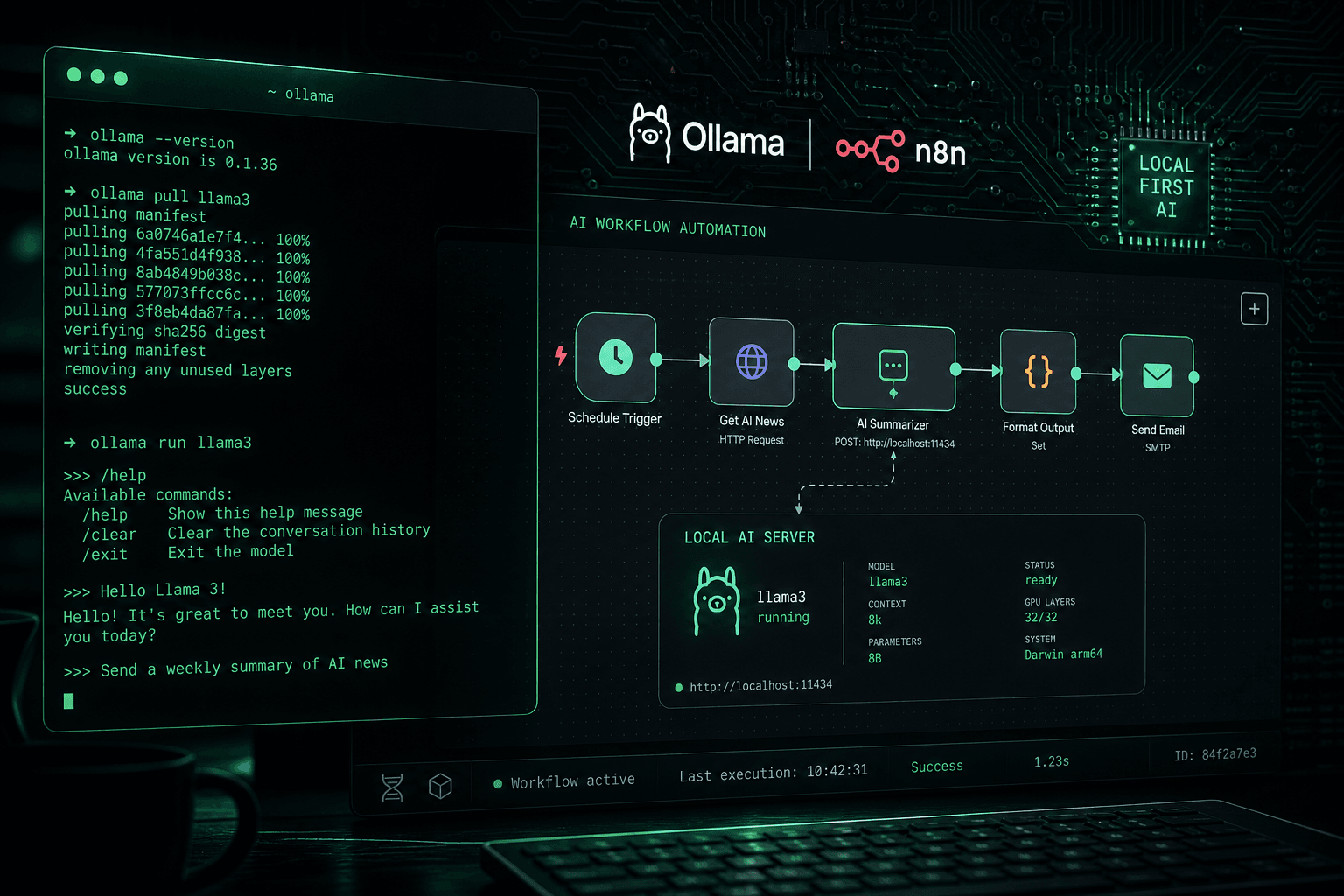
Running Llama 3 Locally: Ollama Setup, n8n Integration, and First-Day Benchmarks

Table of Contents
Running Llama 3 Locally: Ollama Setup, n8n Integration, and First-Day Benchmarks #
Llama 3 dropped yesterday and I've been running it since the weights hit Hugging Face. This is a day-one practical guide: Ollama setup from zero, wiring it into n8n via the HTTP node, and realistic performance numbers across different hardware tiers.
No hype. Just the commands, the JSON, and what to actually expect.
Table of Contents #
- What You Need Before Starting
- Installing Ollama
- Pulling Llama 3: 8B vs 70B Decision
- Testing the Model Locally
- Ollama API Reference
- Connecting Ollama to n8n via HTTP Node
- Building a Real n8n Workflow
- Hardware Performance Benchmarks
- Docker Setup for Production
- Troubleshooting Common Issues
What You Need Before Starting {#prerequisites} #
Minimum requirements for Llama 3 8B: 8GB VRAM (GPU) or 16GB RAM (CPU-only, slower). For the 70B, you need 40GB+ VRAM or 64GB+ RAM.
| Component | 8B Model | 70B Model |
|---|---|---|
| GPU VRAM (preferred) | 8GB+ | 40GB+ |
| RAM (CPU fallback) | 16GB+ | 64GB+ |
| Disk Space | ~8GB | ~42GB |
| OS | macOS 11+, Ubuntu 20.04+, Windows WSL2 | Same |
Software prerequisites:
- macOS, Linux (Ubuntu 20.04+ recommended), or Windows with WSL2
- For GPU acceleration: NVIDIA GPU with CUDA 12.1+ or Apple Silicon (Metal)
- curl (comes with all platforms)
If you're on a machine without a dedicated GPU, the CPU path works — just expect 8–12 tokens/second on a modern desktop CPU rather than 85+ on an RTX 4090.
Installing Ollama {#installing-ollama} #
One command installs everything on macOS and Linux:
curl -fsSL https://ollama.com/install.sh | shFor macOS, you can also use Homebrew:
brew install ollamaOn Windows, download the installer from ollama.com. WSL2 is the better path if you have NVIDIA GPU — the installer detects CUDA automatically.
Verify the install:
ollama --version
# ollama version 0.1.32 (or similar)
Start the Ollama service if it's not already running:
ollama serve
# Listening on 127.0.0.1:11434
On macOS, Ollama runs as a menu bar app after installation and starts the service automatically. On Linux, you'll want to add it as a systemd service:
sudo systemctl enable ollama
sudo systemctl start ollama
Pulling Llama 3: 8B vs 70B Decision {#pulling-llama3} #
Pull the 8B model unless you have 40GB+ VRAM:
# Default — Q4_0 quantized 8B instruct (6.1GB download)
ollama pull llama3

# Explicit instruct variant
ollama pull llama3:8b-instruct-q4_0

# 70B — only if you have the hardware
ollama pull llama3:70b
Quantization options for 8B:
| Tag | Size | Quality | Use Case |
|---|---|---|---|
llama3 |
6.1 GB | Good (Q4_0) | Default, works on most hardware |
llama3:8b-q4_K_M |
4.8 GB | Slightly better Q4 | If disk is tight |
llama3:8b-q8_0 |
8.5 GB | Near-full precision | If you have 12GB+ VRAM |
llama3:8b-fp16 |
16 GB | Full precision | 24GB+ VRAM, highest quality |
For n8n automation workflows, llama3 (the default Q4_0) is the right call. The quality difference between Q4 and Q8 is measurable but not significant enough to justify doubling memory requirements for most tasks.
Testing the Model Locally {#testing-locally} #
Run it interactively first:
ollama run llama3You'll get an interactive prompt. Type your message and hit enter. To exit, type /bye.
Quick sanity check prompts:
>>> Write a Python function that reverses a string
>>> What is 17 × 23? Show your work.
>>> Summarize this in one sentence: [paste some text]
If the model loads but responds very slowly on CPU (>30 seconds for the first token), check if Ollama is actually using your GPU:
# macOS/Linux — check GPU utilization while running a prompt
# On macOS:
sudo powermetrics --samplers gpu_power -n 1
# On Linux:
nvidia-smi dmon
If GPU utilization is 0% during inference, Ollama isn't detecting your GPU. Most common cause on Linux: the NVIDIA container toolkit or CUDA isn't properly installed. Run nvidia-smi first — if that doesn't work, start there.
Ollama API Reference {#ollama-api} #
Ollama exposes a REST API on localhost:11434 that's simple enough to call from anything. This is what we'll use for the n8n integration.
Generate (single prompt completion) #
curl http://localhost:11434/api/generate \
  -H "Content-Type: application/json" \
  -d '{
    "model": "llama3",
    "prompt": "What is the capital of France?",
    "stream": false
  }'
Response:
{
  "model": "llama3",
  "response": "The capital of France is Paris.",
  "done": true,
  "total_duration": 1834291000,
  "prompt_eval_count": 16,
  "eval_count": 8
}
Chat (multi-turn conversation) #
curl http://localhost:11434/api/chat \
  -H "Content-Type: application/json" \
  -d '{
    "model": "llama3",
    "messages": [
      {"role": "system", "content": "You are a helpful assistant. Be concise."},
      {"role": "user", "content": "What is GQA in transformer models?"}
    ],
    "stream": false
  }'
The chat endpoint is what you want for anything requiring multi-turn context or system prompts. The generate endpoint is fine for single-shot tasks.
Key parameters: #
| Parameter | Type | Default | Description |
|---|---|---|---|
model |
string | required | Model name (e.g., "llama3") |
prompt / messages |
string / array | required | Input |
stream |
boolean | true |
Set false for n8n — streaming breaks HTTP node parsing |
temperature |
float | 0.8 |
Randomness. Lower = more deterministic |
num_predict |
int | -1 (unlimited) |
Max output tokens |
top_p |
float | 0.9 |
Nucleus sampling |
Always set "stream": false in n8n. The streaming response is newline-delimited JSON and the HTTP node won't parse it correctly.
Connecting Ollama to n8n via HTTP Node {#n8n-integration} #
n8n's HTTP Request node is all you need to call Ollama. No special plugin, no LangChain wrapper — just a direct API call.
HTTP Request Node Configuration #
In your n8n workflow, add an HTTP Request node with these settings:
| Field | Value |
|---|---|
| Method | POST |
| URL | http://localhost:11434/api/chat |
| Authentication | None |
| Content Type | JSON |
| Send Body | ✅ |
| Body Content Type | JSON |
Body (JSON):
{
  "model": "llama3",
  "messages": [
    {
      "role": "system",
      "content": "You are a helpful assistant. Be concise and accurate."
    },
    {
      "role": "user",
      "content": "={{ $json.prompt }}"
    }
  ],
  "stream": false,
  "options": {
    "temperature": 0.7,
    "num_predict": 512
  }
}
The ={{ $json.prompt }} is n8n expression syntax — it pulls the prompt field from the previous node's output. Adjust to match your actual data shape.
Extracting the Response #
After the HTTP Request node, add a Set node to extract the response text:
Field: response_text
Value: ={{ $json.message.content }}
The full response from the chat endpoint looks like:
{
  "model": "llama3",
  "message": {
    "role": "assistant",
    "content": "The actual LLM response text is here."
  },
  "done": true
}
So $json.message.content is the response. For the generate endpoint, it's $json.response instead.
If you're running n8n in Docker and Ollama is on the host machine, replace localhost with host.docker.internal (macOS/Windows) or the host machine's Docker bridge IP (Linux):
http://host.docker.internal:11434/api/chatOn Linux with Docker, get the bridge IP:
docker network inspect bridge | grep Gateway
# "Gateway": "172.17.0.1"
# Use http://172.17.0.1:11434/api/chat
Building a Real n8n Workflow {#real-workflow} #
Here's a complete working workflow: Webhook → Llama 3 → Response. This is the minimal viable pattern for exposing your local Llama 3 as an API endpoint.
Webhook Trigger → HTTP Request (Ollama) → Set (Extract) → Respond to WebhookWorkflow JSON (import this directly into n8n) #
{
  "nodes": [
    {
      "name": "Webhook",
      "type": "n8n-nodes-base.webhook",
      "parameters": {
        "path": "llama3",
        "responseMode": "responseNode",
        "httpMethod": "POST"
      }
    },
    {
      "name": "Ollama Chat",
      "type": "n8n-nodes-base.httpRequest",
      "parameters": {
        "method": "POST",
        "url": "http://localhost:11434/api/chat",
        "sendBody": true,
        "contentType": "json",
        "body": {
          "model": "llama3",
          "messages": [
            {
              "role": "system",
              "content": "You are a helpful assistant."
            },
            {
              "role": "user",
              "content": "={{ $('Webhook').item.json.body.prompt }}"
            }
          ],
          "stream": false,
          "options": {
            "temperature": 0.7,
            "num_predict": 512
          }
        }
      }
    },
    {
      "name": "Extract Response",
      "type": "n8n-nodes-base.set",
      "parameters": {
        "values": {
          "string": [
            {
              "name": "response",
              "value": "={{ $json.message.content }}"
            }
          ]
        }
      }
    },
    {
      "name": "Respond to Webhook",
      "type": "n8n-nodes-base.respondToWebhook",
      "parameters": {
        "respondWith": "json",
        "responseBody": "={{ JSON.stringify({ response: $json.response }) }}"
      }
    }
  ]
}
Test it:
curl -X POST http://localhost:5678/webhook/llama3 \
  -H "Content-Type: application/json" \
  -d '{"prompt": "What is n8n and why do developers use it?"}'
You should get back a JSON response with Llama 3's answer within 2–5 seconds on decent hardware.
Adding a System Prompt from Data #
For more sophisticated workflows — like routing different task types through different system prompts — you can pull the system prompt from a previous node:
{
  "role": "system",
  "content": "={{ $('Config Node').item.json.system_prompt }}"
}
This lets you build prompt management as data, not hardcoded strings — which makes your workflows much easier to maintain and iterate on.
Hardware Performance Benchmarks {#benchmarks} #
Here's what to actually expect on common hardware, based on first-day testing with Llama 3 8B Q4_0:
| Hardware | Tokens/Second | VRAM / RAM Used | Notes |
|---|---|---|---|
| RTX 4090 (24GB) | 85–95 t/s | 6.1 GB VRAM | Best consumer GPU, fully GPU |
| RTX 4080 (16GB) | 70–80 t/s | 6.1 GB VRAM | Excellent throughput |
| RTX 3060 (12GB) | 45–55 t/s | 6.1 GB VRAM | Solid for automation tasks |
| RTX 3060 Ti (8GB) | 30–40 t/s | 6.1 GB VRAM | Works, light on headroom |
| Apple M3 Max (128GB) | 60–70 t/s | 6.1 GB unified | Excellent for Mac dev setups |
| Apple M2 Pro (32GB) | 40–50 t/s | 6.1 GB unified | Good daily driver |
| Apple M1 Pro (16GB) | 25–35 t/s | 6.1 GB unified | Functional for testing |
| CPU only (Ryzen 9 7950X) | 8–12 t/s | 8 GB RAM | Slow but usable for dev |
For n8n automation tasks, 30+ tokens/second is more than enough. A typical LLM response for extraction or classification is 50–200 tokens — meaning end-to-end response times of 1–7 seconds at that throughput. Fast enough for webhook-triggered automations.
For Llama 3 70B Q4_0:
| Hardware | Tokens/Second | VRAM Required |
|---|---|---|
| 2× RTX 4090 (48GB) | 25–35 t/s | 40 GB+ |
| A100 80GB | 40–50 t/s | 40 GB+ |
| Apple M2 Ultra (192GB) | 20–30 t/s | 40 GB+ unified |
| CPU only (128GB RAM) | 1–3 t/s | 42 GB RAM |
The 70B on CPU-only is too slow for production automation — responses take 3–5 minutes. Use a GPU or Apple Ultra chip.
Docker Setup for Production {#docker-setup} #
If you're running Ollama as a service rather than a dev tool, Docker is the cleaner path. Here's a docker-compose config that includes Ollama and Open WebUI (a ChatGPT-style UI for local models):
# docker-compose.yml
version: "3.8"
services:
  ollama:
    image: ollama/ollama
    restart: unless-stopped
    ports:
      - "11434:11434"
    volumes:
      - ./ollama-data:/root/.ollama
    # Remove 'deploy' block if no NVIDIA GPU:
    deploy:
      resources:
        reservations:
          devices:
            - driver: nvidia
              count: 1
              capabilities: [gpu]

  open-webui:
    image: ghcr.io/open-webui/open-webui:main
    restart: unless-stopped
    ports:
      - "3000:8080"
    volumes:
      - ./webui-data:/app/backend/data
    environment:
      - OLLAMA_BASE_URL=http://ollama:11434
    depends_on:
      - ollama
Start it:
docker compose up -d

# Pull Llama 3 into the running container
docker compose exec ollama ollama pull llama3
Access the WebUI at http://localhost:3000. The API is at http://localhost:11434.
For n8n running in the same Docker network, use http://ollama:11434 as the URL (service-to-service DNS) instead of localhost.
Troubleshooting Common Issues {#troubleshooting} #
Model loads but inference is very slow (< 5 tokens/second):
You're running on CPU. Check if Ollama detected your GPU: look at ollama serve logs for NVIDIA GPU or Metal GPU messages. On Linux, ensure nvidia-container-toolkit is installed and Docker is configured to use it.
connection refused when calling from n8n Docker:
The localhost:11434 address doesn't resolve inside Docker containers. Use host.docker.internal:11434 on macOS/Windows. On Linux, use 172.17.0.1:11434 (or get the actual Docker bridge gateway IP with docker network inspect bridge).
stream: true responses breaking n8n JSON parsing:
Always set "stream": false in the request body. The streaming format sends multiple JSON objects separated by newlines — the HTTP node expects a single JSON response.
Context window exceeded errors:
Llama 3's limit is 8,192 tokens. If you're hitting this, chunk your input. For n8n, add a Code node before the HTTP Request to truncate long inputs:
const maxChars = 6000; // ~1,500 tokens of safety buffer
return [{ json: {
  ...items[0].json,
  prompt: items[0].json.prompt.slice(0, maxChars)
}}];
Model pulls partial weights and fails:
Network interruption during the large model download. Re-run ollama pull llama3 — Ollama resumes interrupted downloads.
Frequently Asked Questions #
How do I install Ollama?
Run curl -fsSL https://ollama.com/install.sh | sh on macOS or Linux. On macOS, brew install ollama also works. Windows users should download the installer from ollama.com or use WSL2 for GPU support.
What are the hardware requirements for Llama 3 8B?
Minimum: 8GB VRAM for GPU inference, or 16GB RAM for CPU-only (much slower). The quantized model (Q4_0) takes ~6.1GB of VRAM and runs at 30–95 tokens/second depending on your hardware.
How do I connect Ollama to n8n?
Use the HTTP Request node. POST to http://localhost:11434/api/chat with a JSON body containing your model name, messages array, and "stream": false. Extract the response from $json.message.content.
Why should I set stream to false in n8n?
n8n's HTTP node expects a single JSON response. The streaming format sends multiple JSON objects on separate lines, which n8n can't parse as a single response. Always set "stream": false for n8n integrations.
Can I run Llama 3 70B locally?
Yes, but you need 40GB+ of VRAM or unified memory. That means a multi-GPU setup, a high-end workstation, or Apple Silicon M2 Ultra / M3 Ultra with 64GB+ unified memory. Without adequate VRAM, it falls back to CPU which runs at 1–3 tokens/second.
How do I expose Ollama to my n8n running in Docker?
If n8n is in Docker and Ollama is on the host, use http://host.docker.internal:11434 (macOS/Windows) or http://172.17.0.1:11434 (Linux). If both are in the same Docker Compose, use the service name: http://ollama:11434.
What's the difference between the generate and chat API endpoints?/api/generate is for single-turn prompts with no message history. /api/chat supports a messages array with system, user, and assistant roles — use this for anything requiring a system prompt or multi-turn context.
How fast is Llama 3 8B for automation tasks?
On an RTX 4090, expect 85–95 tokens/second. On an M3 Max, 60–70 tokens/second. For typical automation responses (50–200 tokens), that's 1–3 seconds end-to-end — fast enough for webhook-triggered n8n workflows.
Build AI Automations That Don't Depend on Paid APIs #
Getting Llama 3 running locally is the first step toward self-hosted AI infrastructure that doesn't accumulate API bills as you scale. The combination of Ollama for model serving, n8n for workflow orchestration, and Llama 3 for intelligence is a production-viable stack for the right use cases.
If you want to go further — production inference infrastructure, fine-tuned domain models, or AI automation workflows wired into your actual business systems — that's what I build for clients.
Book an AI automation strategy call →
Related reading:
Related Posts

How to Stop Client-Facing AI Agents From Hallucinating
Client-facing AI agents hallucinate when they answer without grounding. Here's the layered guardrail stack I use to keep agents accurate and on-script.

AI Sales Systems vs Traditional CRM Automation
Traditional CRM automation fires rules; AI sales systems reason about each lead. Here's how they differ, where each wins, and how to combine them.

The Manual Workflows With the Highest ROI When Replaced by AI Agents
Not every task is worth automating. Here are the manual workflows with the highest ROI when you replace them with AI agents, ranked by payback speed.