ChatGPT Desktop Mac: The Rollout Begins (And What Took So Long)

Table of Contents
ChatGPT Desktop Mac: The Rollout Begins (And What Took OpenAI So Long) #
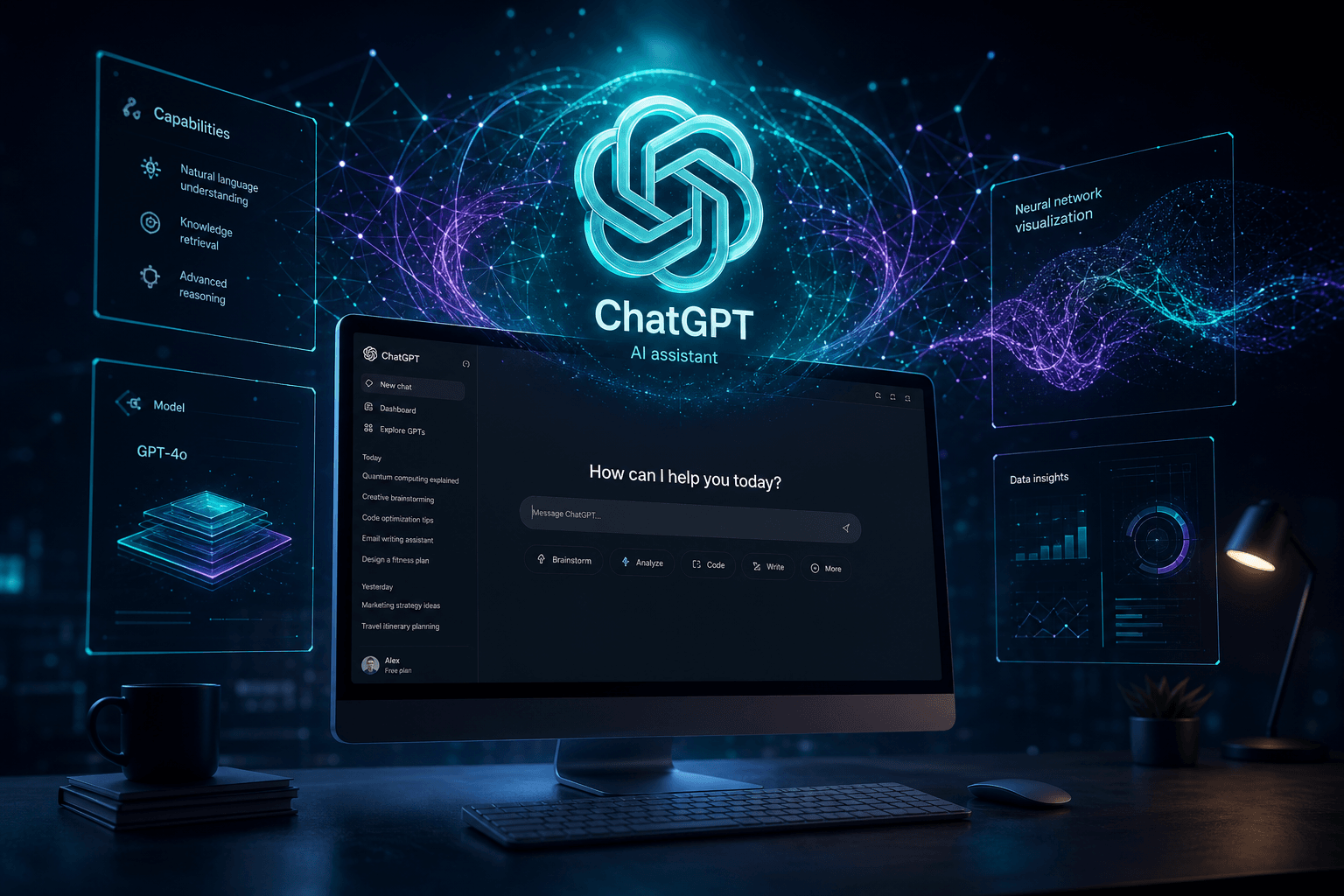
OpenAI is rolling out the ChatGPT desktop app for Mac this week, starting with ChatGPT Plus subscribers and expanding to more users over the coming days. The app features a global Option+Space shortcut for instant access, native screenshot sharing for context-aware conversations, and integration with GPT-4o's voice capabilities. This release marks OpenAI's first native desktop application—a significant move beyond the browser that signals much larger platform ambitions.
I've been testing the app since the rollout began on May 21, and the workflow integration is genuinely different from using ChatGPT in a browser tab. Here's what the desktop app actually delivers, why OpenAI chose Mac first, and what this release tells us about the company's strategy in the escalating AI platform wars.
Table of Contents #
- What Just Launched (and Who Gets It First) — The staged rollout approach and who has access right now
- The Core Features: What the Desktop App Actually Does — Global shortcut, screenshot sharing, voice mode, and file uploads
- Global Shortcut: The Killer Feature for Power Users — How Option+Space changes the workflow completely
- Screenshot and Screen Sharing: Context Without the Copy-Paste Dance — Native screen capture and what makes it different from uploading images
- Voice Mode Integration: A Preview of What's Coming — How desktop voice mode compares to mobile
- System Requirements: What You Need to Run It — macOS versions, Apple Silicon vs Intel, and compatibility details
- Desktop vs. Web: Where Each One Wins — A head-to-head comparison of capabilities and limitations
- Why Mac First? The Platform Strategy Behind the Choice — Reading the tea leaves on Apple's AI alignment
- What This Signals About OpenAI's Platform Ambitions — Native apps, distribution control, and the long game
What Just Launched (and Who Gets It First) #
The ChatGPT desktop app for Mac began rolling out to Plus subscribers on May 21, 2024, with broader availability expanding throughout this week and into early June. This staged release follows the official announcement at OpenAI's Spring Update event on May 13, where the company unveiled GPT-4o alongside the desktop application.
Rollout Timeline #
| User Tier | Status |
|---|---|
| ChatGPT Plus | Rolling out now (started May 21) |
| ChatGPT Free | Expected in coming weeks |
| Enterprise & Teams | Parallel rollout with Plus |
OpenAI is using a staged release approach rather than opening the floodgates to everyone simultaneously. This is a smart move—native desktop applications have different failure modes than web deployments, and a gradual rollout allows OpenAI to catch edge cases before they affect tens of millions of users.
How to Check If You Have Access #
If you're a ChatGPT Plus subscriber, you should see a download prompt in your ChatGPT web interface. Look for:
- In-app notification when you log into ChatGPT on the web
- Email notification from OpenAI with download link
- Direct download at chatgpt.com/download
The app is distributed as a standard macOS .dmg file—no Mac App Store involvement, which is notable for an Apple platform release. This gives OpenAI direct distribution control and the ability to push updates immediately without Apple's review process.
What Took So Long? #
The gap between the May 13 announcement and the May 21 rollout reflects the complexity of shipping native desktop software compared to web deployments. Desktop apps require:
- Code signing and notarization for macOS Gatekeeper compliance
- Native platform integration with macOS accessibility APIs
- Keyboard shortcut handling that doesn't conflict with system shortcuts
- Screenshot permissions and security sandbox considerations
- Offline capability architecture (even if limited)
OpenAI also had to build the infrastructure for auto-updates, crash reporting, and user state synchronization across web and desktop platforms. These aren't trivial engineering challenges, especially for a company primarily focused on model development rather than application software.
The bottom line: If you're a Plus subscriber and don't have access yet, check your email and the web interface daily. The rollout is actively progressing, and the download should appear within the next few days.
The Core Features: What the Desktop App Actually Does #
The ChatGPT desktop app isn't just a web wrapper—it's a native macOS application with deep system integration. Here's what actually ships in this first version:
Feature Overview #
| Feature | Web | Desktop App |
|---|---|---|
| Global Keyboard Access | ❌ | ✅ Option+Space |
| Screenshot Capture | Manual upload | ✅ Native screenshot tool |
| Voice Conversations | ✅ (mobile only) | ✅ Desktop native |
| File Uploads | ✅ | ✅ Drag & drop |
| Conversation Sync | ✅ | ✅ Real-time sync |
| Offline Mode | ❌ | ❌ Still requires connection |
| Custom GPTs | ✅ | ✅ Full support |
Native Screenshot and Screen Context #
The desktop app's screenshot feature is the standout addition. Press Option+Shift+1 (or use the menu) to capture any portion of your screen and immediately send it to ChatGPT for analysis. This eliminates the dance of: take screenshot → find file → drag into browser → wait for upload.
The app can also see your active window context in certain scenarios (with permission), which enables workflows like:
- Debugging code: Screenshot an error message and get fixes without copying text
- Design feedback: Share UI mockups directly for instant critique
- Document analysis: Grab a PDF section and ask questions about it
- Spreadsheet help: Show Excel formulas that aren't working
Voice Mode Integration #
The desktop app supports voice conversations through GPT-4o's native audio capabilities. Unlike the previous voice feature that used Whisper + TTS as separate steps, this leverages GPT-4o's end-to-end audio understanding for more natural dialogue.
Current capabilities include:
- Hands-free conversations while working on other tasks
- Natural interruptions (you can talk over ChatGPT and it responds)
- Emotional tone detection and expression in responses
- Multilingual support with improved non-English handling
The advanced "Sky" voice personality demoed at the Spring Update is rolling out separately to Plus users in the coming weeks.
Model Access and GPTs #
The desktop app provides access to the full model stack:
- GPT-4o — The new flagship omni model (faster, cheaper, better at vision/audio)
- GPT-4 — Original GPT-4 for comparison and specific use cases
- GPT-3.5 — Fastest option for simple queries
- Custom GPTs — Full GPT Store access within the desktop app
- DALL-E 3 — Image generation integrated into the interface
Free users get GPT-4o with usage limits (approximately 16 messages per 3 hours for Plus, fewer for free). The desktop app respects these same rate limits as the web interface.
Global Shortcut: The Killer Feature for Power Users #
The Option+Space global shortcut is the feature that fundamentally changes how you use ChatGPT. It's not an incremental improvement—it's a workflow transformation that moves ChatGPT from a destination you visit to a layer you invoke.
How the Shortcut Works #
From any application, in any context, pressing Option+Space brings up a floating ChatGPT input window. This isn't an app switch—it's an overlay that appears above your current work. Type your query, get your answer, press Escape, and you're back where you were. No context switching. No browser tab management. No mental load of "where did I put ChatGPT?"
Comparison: ChatGPT Desktop vs. Other Launchers #
| Tool | Shortcut | Best For | ChatGPT Integration |
|---|---|---|---|
| ChatGPT Desktop | Option+Space | AI conversations | Native, full-featured |
| Raycast | Option+Space | General productivity | Extension-based, limited |
| Alfred | Option+Space (custom) | Power user workflows | Via workflow hacks |
| Spotlight | Command+Space | File/app search | None native |
Raycast and Alfred users might wonder why they need a separate ChatGPT app. The answer is depth of integration. While Raycast has ChatGPT extensions, they're API-based and lack:
- Screenshot context sharing
- Full conversation history
- Voice mode access
- Custom GPT support
- File upload capabilities
The native desktop app gives you the complete ChatGPT feature set with the convenience of a launcher tool.
Power User Workflows #
After using the app this week, here are the workflows that have stuck:
The Translation Layer: Reading a foreign language document? Option+Space → "Translate this:" → paste text → get instant translation without leaving your PDF viewer.
The Code Explainer: Looking at unfamiliar code in a GitHub repo? Screenshot the function, Option+Space, ask "What does this do and how would I refactor it?"
The Quick Calculator: Need to work through a complex calculation with units? Option+Space beats opening Calculator.app or a spreadsheet for one-off math.
The Email Assistant: Stuck on a response? Screenshot the email thread, ask for reply suggestions with specific tone requirements.
The Research Companion: Reading an article with unfamiliar terminology? Option+Space for instant explanations without tab switching.
Keyboard-Only Navigation #
The desktop app supports full keyboard navigation for users who prefer to stay off the mouse:
- Option+Space — Open/close input window
- Option+Shift+1 — Capture screenshot
- Up/Down arrows — Navigate conversation history
- Command+Enter — Send message
- Escape — Close window (preserves conversation)
This makes ChatGPT accessible as a true utility—always present, never in the way, ready when needed.
Screenshot and Screen Sharing: Context Without the Copy-Paste Dance #
The desktop app's screenshot feature eliminates the friction that makes visual AI assistance cumbersome. Instead of the four-step process (capture → save → find → upload), the desktop app compresses it into one keystroke. This isn't just faster—it's different in kind, because it removes the activation energy that often prevents you from asking for help.
How Native Screenshot Sharing Works #
Press Option+Shift+1 (or select "Share Screenshot" from the menu bar) and the app enters screenshot mode. Click and drag to select any portion of any screen, and the capture immediately appears in a new ChatGPT conversation with GPT-4o's vision capabilities ready to analyze it.
What happens next depends on your question:
- No prompt needed — ChatGPT describes what it sees and offers to help
- Specific questions — "What's the error in this code?" / "How would you redesign this UI?" / "Extract the data from this table"
- Multi-turn analysis — Ask follow-ups about specific elements in the screenshot
What Makes It Different from Web Uploads #
| Aspect | Web Upload | Desktop Screenshot |
|---|---|---|
| Steps to share | 4-5 clicks | 1 keystroke + drag |
| Format handling | Manual (PNG/JPG) | Automatic PNG |
| Multi-monitor | Manual selection | Drag across any screen |
| Annotation | External tools | Built-in (coming) |
| Context awareness | None | Active app detection |
The desktop app also captures window metadata—not visible to you, but useful for ChatGPT to understand what application you're working in when you share a screenshot.
Use Cases by Role #
Developers:
- Screenshot compiler errors for instant explanation
- Share terminal output for command recommendations
- Capture UI bugs for debugging suggestions
- Document code screenshots for refactoring advice
Designers:
- Share mockups for accessibility feedback
- Screenshot competitor interfaces for analysis
- Capture color palettes for matching suggestions
- Get feedback on typography choices in context
Product Managers:
- Screenshot analytics dashboards for interpretation
- Share user feedback screenshots for pattern analysis
- Capture product flows for optimization suggestions
General Users:
- Screenshot forms for help filling them out
- Share receipts for expense categorization
- Capture settings screens for configuration help
- Document error messages for troubleshooting
Privacy Considerations #
Users should understand what happens when they share screenshots:
- Screenshots are uploaded to OpenAI's servers and processed by GPT-4o, just like any image upload
- No automatic deletion — screenshots become part of your conversation history
- Sensitive data exposure — be cautious about screenshots containing passwords, tokens, private messages, or confidential information
- No local-only mode — all analysis happens in the cloud, not on-device
Best practice: Treat screenshots shared with ChatGPT the same way you'd treat images uploaded to any cloud service. Don't share what you wouldn't want stored on a server you don't control.
Limitations in Current Release #
The current desktop app version (1.0) has some gaps users should know about:
- No annotation tools yet — You can't draw arrows or circles before sharing (expected in a future update)
- No scrolling capture — Full-page screenshots aren't supported; just visible regions
- No OCR-only mode — The app always sends the full image, not just extracted text
- No batch uploads — Multiple screenshots require multiple conversations
These are reasonable v1.0 limitations that don't diminish the core value but will likely get addressed in coming updates.
Voice Mode Integration: A Preview of What's Coming #
The desktop app's voice capabilities give us the clearest look at what OpenAI is building with GPT-4o's native audio model. Unlike the previous voice feature—which was essentially Whisper (speech-to-text) feeding into GPT, with a separate text-to-speech layer reading responses—the new system processes audio end-to-end. This matters because it enables natural conversation patterns that weren't possible before.
How Desktop Voice Mode Works #
In the desktop app, click the headphone icon to enter voice mode. The interface changes to a circular visualizer that responds to your voice. Speak naturally—interruptions, hesitations, and all—and ChatGPT responds in kind.
Current capabilities in the Mac desktop app:
- Low-latency responses — GPT-4o averages ~320ms response time to audio inputs, approaching human conversation pace
- Emotional range — The voice expresses enthusiasm, empathy, and other tones based on context
- Accent handling — Improved performance with non-native accents and regional speech patterns
- Code dictation — Speak code naturally ("create a function that takes a list and returns the sum") and get formatted output
Desktop vs. Mobile Voice Experience #
| Aspect | Mobile Voice | Desktop Voice |
|---|---|---|
| Use case | On-the-go convenience | Hands-free while working |
| Microphone quality | Device dependent | Better mics on MacBooks |
| Multitasking | Limited | Full desktop access during voice |
| Visual context | Not available | Screenshots visible during voice |
| Background noise | Variable | Generally quieter environments |
The desktop voice experience is superior for sustained productivity work—you can ask complex questions while continuing to work in other applications, with ChatGPT running in the background like a colleague you can consult at any moment.
What's Rolling Out Soon #
Not all voice features demoed at the Spring Update are available yet. Here's the status:
| Feature | Status | ETA |
|---|---|---|
| Basic voice conversations | ✅ Available now | Live |
| Natural interruption handling | ✅ Available now | Live |
| Advanced "Sky" personality | 🔄 Rolling out to Plus | Weeks |
| Singing and creative voice | 🔄 Rolling out to Plus | Weeks |
| Real-time video conversations | ⏳ Not yet available | Months |
The "Sky" voice—the remarkably natural-sounding personality that caused a stir at the Spring Update—is launching in alpha to Plus subscribers in the coming weeks. It offers more expressive range and personality than the current voice implementation.
Hands-Free Workflow Scenarios #
The desktop voice mode enables scenarios that weren't practical before:
The Kitchen Coder: Walk through coding problems aloud while your hands stay on the keyboard. Explain your thinking, get feedback, refine your approach—all without stopping to type.
The Accessibility Win: Users with repetitive strain injuries or other typing limitations can now interact with ChatGPT at full capacity using voice as the primary interface.
The Thinking Aloud Pattern: Use voice to brainstorm or work through complex logic verbally. The transcript serves as a record of your thought process.
The Multitasking Assistant: Ask ChatGPT to research something while you continue working on another task, then return to hear the summary.
Audio Quality and Hardware #
Voice mode performance varies significantly based on your setup:
- MacBook built-in microphones work well for quiet environments
- AirPods/Bluetooth headsets offer better noise isolation and audio quality
- USB microphones provide the best experience for users planning heavy voice usage
- Studio setups (XLR mics, audio interfaces) are overkill but work fine
The app doesn't currently support push-to-talk or voice activation keywords—you must click to start voice mode. This is likely a privacy-conscious design choice to prevent accidental activations.
System Requirements: What You Need to Run It #
The ChatGPT desktop app has specific requirements that exclude some older Mac hardware. Here's exactly what you need to run the app—and why some machines are left out.
Minimum Requirements #
| Requirement | Specification | Notes |
|---|---|---|
| macOS Version | macOS Sonoma 14.0 or later | macOS Ventura 13.x not supported |
| Processor | Apple Silicon (M1, M2, M3, M4) | Intel Macs not supported |
| RAM | 8GB minimum | 16GB recommended for heavy use |
| Storage | ~150MB for app | Additional for cached data |
| Internet | Required | No offline functionality yet |
| Display | Any Mac display | External monitors fully supported |
Why Apple Silicon Only? #
OpenAI made the decision to exclude Intel Macs from the desktop app launch. The official reasoning centers on performance and user distribution:
- Neural Engine utilization — Apple Silicon's dedicated Neural Engine enables on-device audio preprocessing and voice activity detection, offloading work from the cloud
- Performance optimization — GPT-4o voice mode requires significant local processing; Intel Macs would deliver a degraded experience
- User base concentration — The majority of active Mac users are now on Apple Silicon hardware, especially in the developer and tech-forward demographics that form OpenAI's core user base
- Engineering focus — Supporting Intel would require additional testing and optimization cycles that delay the release
Intel Mac users aren't entirely left out — they can still access all ChatGPT capabilities through the web interface. The desktop app offers convenience features, not exclusive functionality.
Why macOS Sonoma? #
The macOS 14.0+ requirement is stricter than many apps. Sonoma-specific features the app may leverage include:
- Updated accessibility APIs for screen context detection
- Enhanced notification system for conversation alerts
- Improved window management for the overlay interface
- Security framework updates for the screenshot permission model
Users on macOS Ventura (13.x) will need to upgrade to use the desktop app, though the web version remains fully functional.
Installation and Setup #
Getting the app running takes about two minutes:
- Download the
.dmgfrom chatgpt.com/download (or via the in-app prompt) - Mount the disk image and drag ChatGPT to Applications
- Launch from Applications or Spotlight
- Sign in with your OpenAI account (credentials sync from web)
- Grant permissions when prompted for accessibility and screen recording access
The permission requests are standard for apps with this level of system integration. Declining accessibility access disables the global shortcut; declining screen recording access disables the screenshot feature. You can grant these later in System Settings if you initially decline.
Regional Availability #
The desktop app is available in all regions where ChatGPT is currently offered. There are no country-specific restrictions beyond the standard OpenAI service availability map. However:
- API access and custom GPTs follow their existing regional availability
- Voice mode may have language limitations in certain regions
- Enterprise features require separate provisioning through your admin
Troubleshooting Common Issues #
"App is damaged and can't be opened" — This is usually Gatekeeper being cautious. Right-click the app and select "Open" to bypass, or ensure you've downloaded from the official OpenAI site.
"Screen recording permission keeps asking" — macOS Sonoma requires explicit permission for each app that captures screen content. Grant this in System Settings → Privacy & Security → Screen Recording.
"Shortcut doesn't work" — Check for conflicts with other apps using Option+Space. Raycast, Alfred, and some window managers use this shortcut. You'll need to reconfigure one of them.
"Voice mode not available" — Ensure your Plus subscription is active. Voice mode requires GPT-4o access, which is currently Plus-only (with free user rollout coming later).
Desktop vs. Web: Where Each One Wins #
The desktop app doesn't replace the web version—it complements it. Understanding where each interface excels helps you choose the right tool for the task at hand.
Feature Comparison Matrix #
| Feature | Web | Desktop App | Winner |
|---|---|---|---|
| Global keyboard access | ❌ | ✅ Option+Space | Desktop |
| Native screenshot capture | Manual upload | ✅ Built-in | Desktop |
| Voice conversations | Mobile only | ✅ Full support | Desktop |
| File drag & drop | ✅ | ✅ | Tie |
| Custom GPTs | ✅ | ✅ | Tie |
| Plugins | ✅ | ✅ | Tie |
| Web search (Browse) | ✅ | ✅ | Tie |
| Code interpreter | ✅ | ✅ | Tie |
| DALL-E image generation | ✅ | ✅ | Tie |
| Conversation history | ✅ | ✅ (synced) | Tie |
| Multi-account switching | ✅ | ✅ | Tie |
| Dark mode | ✅ | ✅ | Tie |
| Offline access | ❌ | ❌ | Neither |
| Mobile access | ✅ | ❌ | Web |
| Browser extension integration | ✅ | ❌ | Web |
| Developer tools access | ✅ | ❌ | Web |
Where the Desktop App Wins #
Ambient AI Access: The Option+Space shortcut makes ChatGPT available without disrupting your current context. If you're deep in a coding session and need a quick explanation, the desktop app preserves your flow state in a way browser tab switching can't match.
Screenshot Workflows: The native screenshot tool eliminates friction for visual assistance. Developers debugging UI issues, designers seeking feedback on mockups, and anyone working with visual data will save significant time.
Voice Productivity: Desktop voice mode is superior to mobile for sustained work. The combination of better microphones, quieter environments, and the ability to multitask while conversing makes this the preferred voice interface.
Keyboard-First Navigation: Every feature in the desktop app is keyboard accessible, including screenshot capture, model switching, and conversation management. Power users who avoid the mouse will appreciate this.
Where the Web Version Wins #
Cross-Platform Consistency: The web version works on any device with a browser, including Intel Macs, older macOS versions, and any operating system. It's the lowest common denominator that Just Works everywhere.
Browser Ecosystem Integration: Extensions like speech-to-text tools, bookmark managers, and research assistants integrate naturally with the web version. The desktop app is a silo.
Developer and Debugging: Web developers can inspect network requests, view console logs, and debug the ChatGPT interface when building GPTs or testing API behavior. The desktop app offers no developer tools access.
Multiple Sessions: Browser users can open multiple ChatGPT conversations in different tabs. The desktop app is currently limited to one active conversation window (though you can switch between existing conversations).
Link Sharing: Sharing a specific conversation is more straightforward in the web interface, with familiar URL copying and browser-based sharing.
Performance Considerations #
| Metric | Web | Desktop |
|---|---|---|
| Cold start time | ~2-3 seconds | ~1 second |
| Model response speed | Same | Same |
| Screenshot to analysis | 10-15 seconds | 3-5 seconds |
| Memory usage | Browser dependent | ~200MB dedicated |
| Battery impact | Browser dependent | Optimized for background |
The desktop app launches faster because it's not loading a full browser environment. However, actual AI response times are identical—the same OpenAI API powers both interfaces.
Which Should You Use? #
Choose the Desktop App if:
- You're on an Apple Silicon Mac with macOS Sonoma
- You want keyboard-first access to ChatGPT
- You frequently ask questions about visual content on your screen
- You prefer voice interaction while working
- You want ChatGPT as a system utility, not a destination
Stick with the Web Version if:
- You're on Intel Mac or older macOS
- You frequently share conversations via links
- You rely on browser extensions for your workflow
- You need developer tools access for GPT development
- You use multiple ChatGPT accounts simultaneously
Many users will use both — the desktop app for ambient, quick-access conversations during focused work, and the web version for longer sessions, deep research, or when working across multiple accounts.
Why Mac First? The Platform Strategy Behind the Choice #
OpenAI's decision to launch on Mac before Windows isn't accidental—it's a calculated strategic move that reveals how the company thinks about platform partnerships, user demographics, and the competitive landscape. Understanding why Mac got priority tells us a lot about where OpenAI is positioning itself in the platform wars.
The Apple Demographics Argument #
The most straightforward explanation: OpenAI's core user base skews heavily toward Mac. The intersection of AI early adopters, developers, and tech-forward professionals concentrates disproportionately on Apple Silicon hardware. Launching where your users are makes obvious sense.
Mac users represent:
- A higher concentration of paying subscribers (Plus/Enterprise tiers)
- Earlier adopters of new technology and workflows
- Users with hardware (Apple Silicon Neural Engine) that enables better AI experiences
- A demographic that historically spends more on software and productivity tools
This isn't favoritism—it's targeting. OpenAI wants the desktop app in the hands of users most likely to become advocates and generate organic adoption.
The Technical Rationalization #
There are legitimate technical reasons for Mac-first development:
| Factor | macOS | Windows |
|---|---|---|
| Hardware consistency | Limited SKUs, known specs | Infinite combinations |
| Neural Engine | Standard on all supported devices | Varies by hardware |
| API stability | Recently modernized (Sonoma) | Legacy support burden |
| Distribution | DMG + auto-updater (no store) | Microsoft Store complexity |
| Testing surface | Smaller, manageable | Enormous matrix |
macOS Sonoma's accessibility and screen recording APIs provide a cleaner foundation for the global shortcut and screenshot features. Windows offers similar capabilities but across a fragmented landscape of versions, hardware configurations, and enterprise policy environments that complicate testing.
The Apple Partnership Angle #
The timing of this release—weeks before Apple's WWDC 2024—is not coincidental. OpenAI and Apple are clearly in conversations about deeper integration. The Mac app positions OpenAI as a serious native platform player and demonstrates technical competence that Apple would require for any system-level partnership.
What this could lead to:
- Siri leveraging GPT-4o for complex queries
- Apple Intelligence features powered by OpenAI models
- System-level AI shortcuts across macOS
- iOS/iPadOS ChatGPT apps with deeper integration
Apple typically builds core capabilities in-house but partners for specialized services. OpenAI is positioning itself as the best partner for sophisticated AI features that Apple can't or won't build independently.
What About Windows Users? #
The Windows version is confirmed and in development. Based on current information:
- Timeline: Expected later in 2024 (no specific date announced)
- Scope: Full feature parity planned
- Requirements: Likely Windows 11 with specific hardware specs
- Distribution: Probably Microsoft Store for security/compliance
Windows users aren't being ignored—they're being sequenced. The Mac launch serves as a production testbed to refine the experience before scaling to Windows' larger but more heterogeneous user base.
The Platform Wars Context #
This launch sits at the intersection of several competing strategies:
| Player | Position | Interest in Desktop AI |
|---|---|---|
| OpenAI | Model provider | Distribution beyond browser; escape Google/Apple control |
| Apple | Platform owner | Control AI experience; extract value from AI economy |
| Microsoft | Platform + investor (OpenAI) | Copilot everywhere; Windows AI integration |
| Platform + competitor | Gemini in Chrome/Android; counter OpenAI expansion |
OpenAI's desktop app is a hedge against platform dependency. If ChatGPT lives only in browsers (controlled by Google, Apple, Microsoft) and mobile apps (controlled by Apple and Google), OpenAI is always a guest on someone else's platform. Native desktop apps—on both Mac and Windows—give OpenAI its own distribution channel.
Microsoft's position is particularly interesting. As OpenAI's largest investor and close partner, Microsoft theoretically benefits from OpenAI's success. But Microsoft's Copilot strategy directly competes with ChatGPT. The Mac-first launch may actually serve Microsoft's interests by establishing ChatGPT as the cross-platform standard while Copilot focuses on Microsoft ecosystem lock-in.
What This Signals for Builders #
For developers and businesses building on AI platforms, the Mac-first launch demonstrates a pattern worth noting:
- Hardware-optimized experiences win — Apple Silicon's Neural Engine justifies platform-specific development
- Staged rollouts are the norm — Expect launches to prioritize concentrated, high-value user segments first
- Platform partnerships matter — Who you align with affects your distribution and capabilities
- Native > Web for serious tools — The best AI experiences will increasingly be native applications, not browser tabs
If you're building AI-powered applications, consider whether a native desktop experience—perhaps using Electron, Tauri, or similar frameworks—would deliver the integration depth that distinguishes commodity AI wrappers from serious productivity tools.
What This Signals About OpenAI's Platform Ambitions #
The ChatGPT desktop app is more than a convenience feature—it's a strategic beachhead in the platform wars that will define AI's next phase. Understanding what OpenAI is building requires looking past the individual features to the distribution and control architecture underneath.
The Browser Dependency Problem #
For its first 18 months, ChatGPT existed entirely within browsers—Chrome, Safari, Edge. This created three strategic vulnerabilities:
- Search engine dependency — Users discover ChatGPT through Google, which competes directly with Gemini
- Platform gatekeepers — Apple and Google control mobile app distribution with opaque review processes
- Feature limitations — Browsers can't access native OS capabilities like global shortcuts and screenshot tools
Every ChatGPT conversation that happened in Chrome was a relationship OpenAI mediated through Google's infrastructure. Every mobile session required Apple's permission to exist. The desktop app changes this equation.
Native Apps as Distribution Channels #
The desktop app establishes a direct relationship between OpenAI and users, bypassing platform intermediaries. This matters because:
| Control Area | Browser/Web | Native Desktop App |
|---|---|---|
| Update cadence | Immediate | User-controlled, but faster than app stores |
| Feature experimentation | A/B testing feasible | Full deployment autonomy |
| Data collection | Limited by browser constraints | Full telemetry possible |
| User relationship | Mediated by search/social | Direct, owned channel |
| Monetization | Web payments only | Native payment options |
| System integration | Sandboxed | Deep OS hooks |
OpenAI can now push features, test interfaces, and iterate on user experience without waiting for browser updates or app store approvals. The DMG distribution model—unusual for consumer Mac software—reflects this desire for independence.
The Platform Layer Strategy #
Sam Altman has described OpenAI's ambition to build the "platform layer" for AI. The desktop app advances this by positioning ChatGPT as infrastructure, not just an application. Consider the architecture:
User
  ↓
Desktop App (Option+Space interface layer)
  ↓
GPT-4o (reasoning engine)
  ↓
Memory, custom GPTs, tools (persistence layer)
This stack mirrors what operating systems provide—an interface layer, processing capabilities, and persistent state management. OpenAI is essentially building an OS on top of existing platforms, using the desktop app as the shell.
Competition with Platform Owners #
The desktop app launch comes as platform owners are racing to integrate AI deeply into their operating systems:
- Apple — Apple Intelligence (announced at WWDC 2024, launching fall 2024)
- Microsoft — Copilot in Windows 11, 365 integration
- Google — Gemini in Android, Chrome, Workspace
OpenAI's challenge: if users get capable AI from their OS vendor, why install a separate app? The answer is quality and neutrality. Apple's AI will favor Apple services. Microsoft's Copilot will prioritize Microsoft integration. OpenAI can position itself as the independent, best-in-class option that works consistently across all platforms.
The Enterprise Angle #
The desktop app's features—particularly the screenshot and voice capabilities—suggest enterprise use cases are central to the strategy:
- IT support workflows — Screenshot error states for instant troubleshooting
- Knowledge workers — Voice dictation and hands-free assistance
- Compliance scenarios — Audit trails of AI-assisted work
- Security-conscious environments — On-premise or private cloud AI options (speculative, but directionally likely)
Enterprise adoption requires desktop software that IT departments can deploy, manage, and monitor. The ChatGPT desktop app—distributed outside the Mac App Store—gives enterprises deployment flexibility they wouldn't have with consumer app store distribution.
What Comes Next #
Based on this release, we can anticipate OpenAI's roadmap:
Near-term (2024):
- Windows desktop app launch
- Advanced voice mode (Sky personality) rolling out to Plus
- Plugin/extension system for desktop app
- Better multi-monitor and multi-window support
Medium-term (2024-2025):
- Limited offline capabilities (local caching, queued requests)
- Desktop agents that can take actions across applications
- Enterprise admin controls and deployment tools
- Linux support (developer demand is significant)
Long-term (2025+):
- Operating system-level partnerships (system AI on Mac/Windows)
- Custom silicon optimization (Apple Neural Engine, Qualcomm NPUs)
- Alternative input methods (eye tracking, gesture, thought interfaces)
For Builders: What This Means for Your Strategy #
If you're building AI-powered products or services, the ChatGPT desktop app reveals several important patterns:
Native experiences are table stakes — Wrapper apps around APIs won't compete with deeply integrated native tools. Budget for native development (not just web).
Platform independence is valuable — Users will increasingly expect AI that works consistently across their devices and OS choices. Don't over-index on a single platform's AI features.
Keyboard-first design wins — The global shortcut pattern (Option+Space) is becoming a standard expectation. Design for ambient, non-disruptive access.
Voice is the new CLI — For power users, voice interfaces are becoming as important as typing. Plan for voice interaction in your product roadmap.
Distribution matters as much as model quality — OpenAI is investing heavily in distribution channels because they know even the best model is useless if users can't access it frictionlessly. Your AI strategy must include distribution planning.
The desktop app is OpenAI's opening move in the platform wars. They want to be the AI layer that sits between you and your operating system—always available, deeply integrated, and independent of any single platform vendor's agenda. Whether they succeed depends on execution, but the strategy is now clear.
FAQ: ChatGPT Desktop Mac App #
How do I download the ChatGPT desktop app for Mac? #
Plus subscribers can download the app at chatgpt.com/download or through the prompt in the web interface. The rollout began on May 21, 2024, and is expanding to all Plus users throughout this week. Free users will gain access in the coming weeks. The app is distributed as a DMG file—no Mac App Store required.
What's the difference between the desktop app and the web version? #
The desktop app adds native integration features that the web version can't provide. The key differences are the Option+Space global shortcut for instant access from any app, native screenshot capture and sharing, and full voice mode support on desktop. The web version remains fully functional for all core ChatGPT capabilities—conversation, file uploads, custom GPTs, and image generation work identically in both interfaces.
Can I use voice mode in the desktop app? #
Yes, voice conversations are fully supported in the desktop app using GPT-4o's native audio capabilities. The app supports natural voice dialogue with low-latency responses (approximately 320ms), emotional tone expression, and the ability to interrupt and redirect the conversation. The advanced "Sky" personality voice demoed at the Spring Update is rolling out to Plus users separately in the coming weeks.
Does the desktop app work offline? #
No—the ChatGPT desktop app requires an internet connection for all functionality. Even basic conversation requires connecting to OpenAI's servers. There is no offline mode, local processing, or queued messages for later delivery. The desktop app's value is in workflow integration, not offline capability.
Is the ChatGPT Mac app free? #
The app itself is free, but usage requires a ChatGPT account. Free users can download the app when it becomes available to them (coming weeks) and use GPT-4o with standard free-tier limits. ChatGPT Plus subscribers ($20/month) get higher rate limits, priority access to new features, and early access to the desktop app during the current rollout phase.
When will the Windows version be released? #
OpenAI has confirmed a Windows version is coming later in 2024, but no specific date has been announced. The Mac launch is serving as a production testbed to refine the experience before scaling to Windows' larger but more fragmented hardware and software environment. Windows users should expect full feature parity when the version launches.
Can I use custom GPTs in the desktop app? #
Yes, custom GPTs and the GPT Store are fully supported in the desktop app. All your custom GPTs sync from your web account and are accessible through the same sidebar interface. The desktop app respects the same usage limits and permissions as the web version—if you can access a GPT on the web, you can access it in the desktop app.
Does the app support keyboard shortcuts? #
Yes, the desktop app is designed for keyboard-first workflows. The primary shortcut is Option+Space to open/close the app from anywhere. Additional shortcuts include Option+Shift+1 for screenshot capture, Command+Enter to send messages, and Escape to close the window. All features are accessible without using the mouse.
Can I upload files directly in the desktop app? #
Yes, file uploads work in the desktop app via drag-and-drop or the attachment button. Supported file types include PDFs, images, spreadsheets, code files, and documents—identical to the web interface. The desktop app also adds native screenshot capture as an alternative upload method for visual content on your screen.
How do I check if I have access to the desktop app? #
Check for an in-app notification when you log into ChatGPT on the web, or look for an email from OpenAI with download instructions. The rollout is happening in stages, so if you're a Plus subscriber and don't see the prompt yet, check back daily. You can also try visiting chatgpt.com/download directly—if you have access, the download will be available.
Related Coverage #
If you're tracking OpenAI's platform moves this month, here are related posts worth reading:
- GPT-4o Launch Day: What the Omni Model Actually Does — The flagship model powering the desktop app's voice capabilities, explained in detail
- Anthropic's Claude iOS App and Team Launch — How OpenAI's primary competitor is approaching mobile and enterprise distribution
- OpenAI's Superalignment Crisis: The Ilya Departure — The organizational context behind OpenAI's rapid product releases
The ChatGPT desktop app for Mac represents a shift in how we'll interact with AI—from destination to ambient layer. The global shortcut, native screenshot sharing, and voice integration make ChatGPT feel like part of your operating system rather than a separate application you visit.
For teams and businesses, this points toward a future where AI assistants are woven into daily workflows rather than treated as special occasions. The question isn't whether to adopt AI interfaces like this—it's how to design them for your specific operations, processes, and team habits.
Want to build AI workflows that integrate this deeply into your business operations? Book an AI automation strategy call and let's design systems that actually fit how your team works—ambient AI that removes friction instead of adding to it.
Related Posts
Google I/O 2026 Action List: How I Prompted Gemini 3.5 Flash and Antigravity Workflows
Google I/O 2026 just reset the AI tooling landscape. Here's the 9-action checklist for builders who want to ship this week, not just watch the keynote.
Anthropic vs. OpenAI vs. Google: The State of the Frontier in May 2026
A head-to-head breakdown of the three AI giants in May 2026: Claude Opus 4.6, GPT-5.3 and 5.4, Gemini 3.1 Pro. Real specs, real pricing, and what actually matters for builders.
Kimi K2 Open Weights: How I Prompted Moonshot's Frontier Model for Agentic Tool Use
How I direct Kimi K2 by Moonshot AI for agentic workflows, long-context tool calling, and workflow automation. A 1 trillion parameter MoE model with competitive benchmarks at 5-17x lower cost than GPT-5 and Claude.