Running a Solo Studio on Notion Mail, Calendar, and Notes With AI Doing the Triage

Table of Contents
Running a Solo Studio on Notion Mail, Calendar, and Notes With AI Doing the Triage #
The Operating System: Why Notion Became My Studio's Central Nervous System #
I switched from a fragmented stack—Gmail for mail, Calendly for scheduling, Google Docs for notes, Todoist for tasks—to Notion Mail, Calendar, and Notes because context fragmentation was costing me 6–8 hours weekly just in context-switching and search time. The unified surface means every client thread, project spec, meeting note, and follow-up task lives in one queryable workspace. Notion AI can see across all of it.
The pivot happened in early 2026 after I audited my workflow. I was spending more time finding information than using it. A client brief in Google Docs. An email thread in Gmail. A meeting scheduled via Calendly that didn't sync context to the project. Tasks scattered across three tools. The cognitive overhead was invisible but expensive.
The core principle that makes this work: context centralization. When your mail, calendar, notes, and tasks share a single database backend, an AI agent can traverse the entire graph of your work without API gymnastics or fragile integrations. Notion AI doesn't need Zapier to know that the email from "Sarah at BrightCo" connects to the "BrightCo Website Redesign" project page and the meeting scheduled for Thursday.
This matters for agentic workflows. When I point Claude Code or Cursor at a Notion URL for a client brief, the context is already structured. When I ask Notion AI to prep me for a meeting, it reads the project doc, the email thread, and the prior meeting notes without me copy-pasting anything.
| Tool Replaced | Notion Equivalent | Why the Switch Mattered |
|---|---|---|
| Gmail | Notion Mail | Emails become database rows; AI can label, sort, and link to projects natively |
| Google Calendar + Calendly | Notion Calendar | Native workspace integration; meeting context auto-links to project pages |
| Google Docs + Notes apps | Notion Notes | Living documents that reference tasks, emails, and calendar events by @mention |
| Todoist + Task managers | Notion Tasks | Tasks born from emails, meetings, or notes stay in the same graph |
| Slack (client comms) | Notion Mail + Comments | Async, structured communication with full search and context preservation |
For a solo studio, I start at Notion Plus at about $10/user/month billed annually, and that now includes unlimited Notion AI, Mail, and Calendar. Business adds more admin and collaboration controls on top, not a separate AI add-on. See my breakdown of the solo AI consultant tech stack for how this fits into the broader tooling budget.
Notion Mail: Building an AI-Triaged Inbox That Actually Stays at Zero #
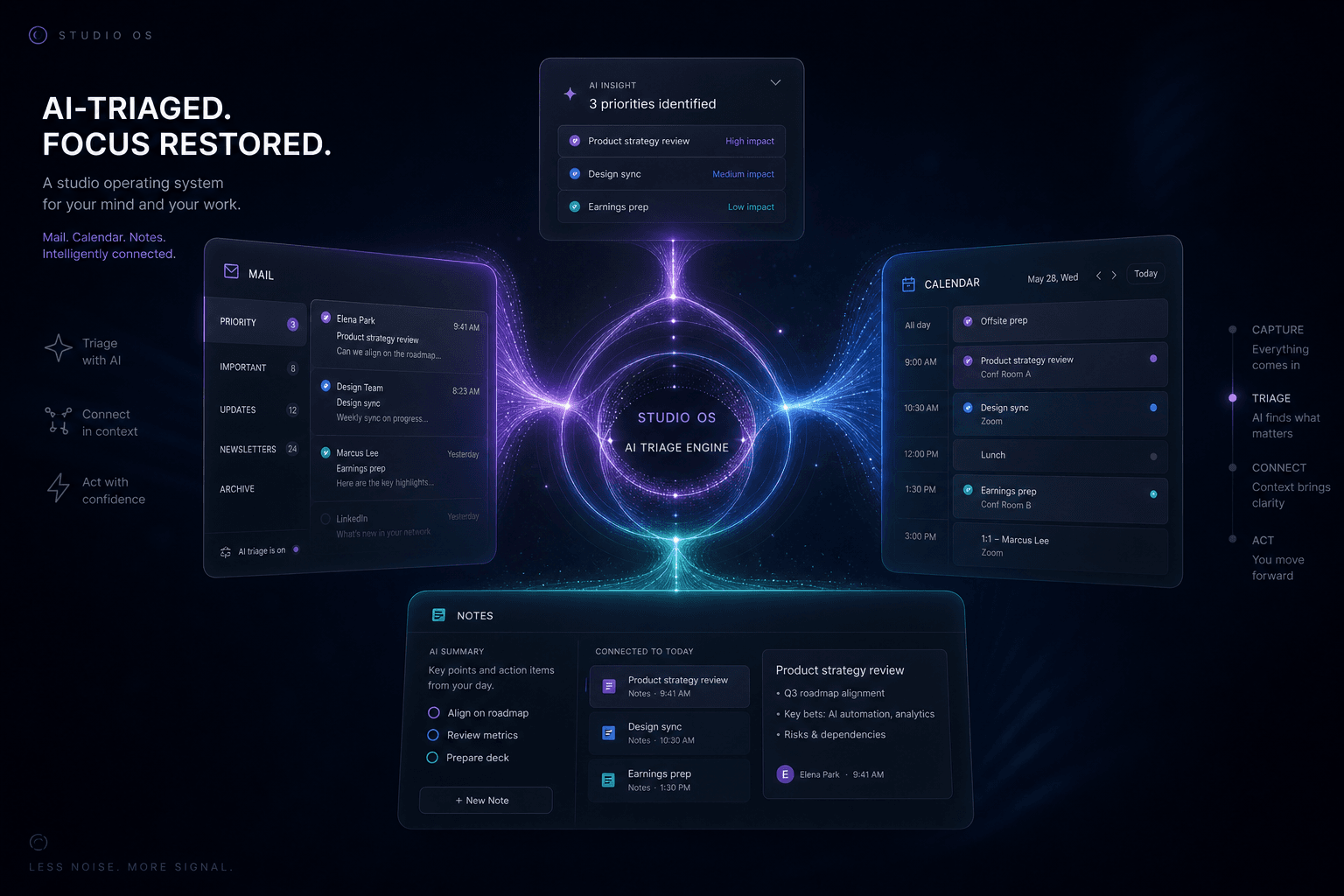
Notion Mail transforms your inbox into a queryable, AI-triaged database where emails become structured records that Notion AI can label, prioritize, and draft responses to—without brittle Gmail filters or manual sorting. The interface looks like Notion: rows of emails you can view as a table, board, or list, with custom properties you define.
The killer feature is AI auto-labeling. Notion AI reads incoming emails and applies labels you define based on content, not just sender patterns. I have labels for Urgent-Client, Proposal-Request, Invoice-Related, Newsletter, and Delegate-to-Agent. The AI applies these by understanding the actual text of the email, not just the subject line.
What makes this different from Gmail's tabbed inbox or Superhuman's shortcuts: the labels are programmable in natural language. I don't write regex. I write a rule like: "Label as Urgent-Client if the email is from a domain in my Clients database AND contains words like 'deadline', 'blocked', or 'ASAP'". Notion AI evaluates this against each incoming message.
The Triage Rules That Gate Every Email #
I operate with six standing rules that Notion AI applies to every incoming email. These rules live across my Email Triage Rules and Studio Rules pages, so the AI is making the same call every morning instead of improvising a new system.
- Urgent-Client: Email from
@client-domain.comAND contains deadline/blocker language - Proposal-Request: Contains words like "proposal", "quote", "estimate", "scope", or "project inquiry"
- Invoice-Related: Contains "invoice", "payment", "receipt", "billing" OR from known accounting services
- Meeting-Request: Contains "schedule", "book a call", "meeting", "availability"
- Newsletter-Digest: From known newsletter senders OR contains "unsubscribe" in footer AND longer than 500 words
- Delegate-to-Agent: Any email that can be answered by referencing public info on my website or standard processes
I also gate each thread with a simple priority matrix so "important" doesn't swallow the whole day:
INBOX DECISION MATRIX
1. CLIENT-ACTIVE: If sender domain matches [Active Projects DB], priority = 1.
2. REVENUE-SIGNAL: If body contains "invoice", "payment", "proposal", or "quote", priority = 1.
3. SCHEDULING: If body contains "calendar", "book", "zoom", or "availability", priority = 2.
4. COLD-OUTREACH: If sender not in [Contacts DB] AND body contains "partnership" or "collab", priority = 4.
5. NEWSLETTER: If "unsubscribe" exists in footer, priority = 5.
6. NOISE: If priority > 3 AND not from [Contacts DB], move to [Archive].
At the start of each day, I open Notion Mail, select the overnight batch, and run a standing prompt:
EMAIL TRIAGE PROMPT

Context: Apply the rules from [link to Email Triage Rules page].

For each selected email:
1. Apply the matching label (or suggest a new one)
2. Draft a brief summary (1-2 sentences) of what the sender wants
3. Suggest a priority: NOW (same-day response), SOON (48 hours), LATER (weekly digest), or ARCHIVE
4. If Delegatable, draft a response using [link to Standard Responses database]

Output: A table with columns: Email | Label | Summary | Priority | Draft Response (if applicable)
Notion AI returns this as a formatted table in seconds. I review the assignments, adjust if needed, and click to apply labels. For Delegatable items, I review the draft response, edit if necessary, and send. The whole process takes 10–15 minutes for 50+ emails, and I only look at Priority 1 and 2 during the day.
Drafting Responses Without Losing Voice #
The fear with AI-drafted email responses is sounding like a bot. The fix is context provisioning: I feed Notion AI examples of my actual sent emails, plus a short list of hard constraints, so the draft sounds like me and not default model mush.
I maintain a page called Voice Examples with 10–15 emails I've written that represent different tones: warm initial response, direct feedback, detailed technical explanation, brief acknowledgment, firm boundary-setting. I pair that with a lightweight Voice Manifest that locks greeting rules, sign-off rules, sentence length variance, and a banned phrase list. When I ask Notion AI to draft a response, I include this instruction:
VOICE-CONSTRAINED DRAFT PROMPT

Context: Match the tone and sentence structure of these examples [link to Voice Examples].

Task: Draft a response to the selected email that:
1. Matches my typical greeting style (first-name basis, no "Hi there" or "Dear Sir")
2. Uses direct, declarative sentences (no "I just wanted to reach out to...")
3. Includes specific next steps with clear timeframes
4. Ends with my standard sign-off

Constraints: Maximum 150 words unless the topic requires detail. No exclamation points unless enthusiasm is genuinely warranted. Make the reply about 30% shorter than the incoming email. If the answer is no, say it in the first sentence without an apology. Avoid banned phrases from [link to Voice Manifest].
The key is constraining the style through examples, not describing it in the abstract. "Be professional" is useless. "Match the sentence rhythm and greeting style of these 5 examples, stay 30% shorter, and don't use any of these filler phrases" works. That usually gets me to a usable draft in 10 seconds instead of a full rewrite.
Notion Calendar: The Context-Aware Schedule That Preps Before Every Call #
Notion Calendar—built on the foundation of Cron, which Notion acquired in 2023—integrates directly with your workspace so every meeting auto-links to project pages, client briefs, and prior notes. You walk into calls fully prepped without manually opening five tabs.
The integration works through @mentions and linked databases. When I create a meeting in Notion Calendar, the event description accepts Notion links. I link to the client's project page, the active SOW, and any relevant notes. When the meeting approaches, Notion AI can read all of this context and generate a briefing.
The calendar becomes a command center. Each event has properties beyond time: Client, Project, Meeting Type (Discovery, Review, Async Check-in, Sprint Planning), and Prep Status. The linked Client property pulls from my Clients database, so the relationship graph is explicit.
The Pre-Meeting Brief: Auto-Generated from Context #
Here's the prompt I run 15 minutes before every client call:
MEETING PREP PROMPT

Context Sources:
- This meeting's Calendar event description [auto-linked]
- Client project page: [auto-linked from event Client property]
- Last 3 meeting notes with this client [queried from Meeting Notes database, filtered by Client]
- Outstanding tasks assigned to this client [from Tasks database]
- Active SOW page [linked from project page]

Generate a 3-paragraph briefing:
1. CONTEXT REFRESHER: Who this is, what we're building, where we are in the project timeline
2. AGENDA CHECK: What's supposed to happen in this meeting vs. what the project actually needs
3. OPEN ITEMS: Outstanding questions, blockers, or decisions from prior notes that should be resolved
4. ELEPHANT IN THE ROOM: What this client is most likely frustrated about, avoiding, or waiting on
5. QUESTIONS TO GET ANSWERED: List the 3 questions that would move the project forward 20%

Format: Bullet points, maximum 5 items per section. Bold critical items.
Notion AI pulls all the linked context and returns a briefing in 10–15 seconds. I review it on my phone while walking to my desk. I know the client's current concerns, what's blocked, what decision is stalling, and what we need to settle before the Zoom link opens.
For recurring meetings (weekly standups, monthly reviews), I automate this further. Notion AI runs the prompt automatically 30 minutes before the meeting and appends the briefing to the calendar event description. I just open the event and read.
Scheduling That Respects Deep Work #
Notion Calendar protects focus blocks by treating them as first-class calendar events. I create a Focus: [Project Name] event type with a distinct color. The scheduling link feature (similar to Calendly) respects these blocks—no manual availability toggling.
My weekly template:
| Day | Morning Block | Afternoon Block |
|---|---|---|
| Monday | Admin + Triage | Client Work (Active Project A) |
| Tuesday | Deep Work: Build (Active Project B) | Deep Work: Build (Active Project B) |
| Wednesday | Client Calls (batched) | Ops + Automation |
| Thursday | Deep Work: Build (Active Project A) | Deep Work: Build (Active Project A) |
| Friday | Review + Planning | Light Tasks + Learning |
The key insight: batch meetings to protect flow. I treat Wednesday as my external-call day and protect Tuesday and Thursday for build work. Notion Calendar's availability settings let me offer booking links only inside those windows, and the AI respects that when suggesting meeting times to clients.
The linked-database approach means I can also view my calendar by Project or Client. When I'm in deep work on Project A, I filter the calendar view to see only Project A events. I also run a Sunday-night Focus Audit where Notion AI flags "Swiss Cheese" days with scattered 30-60 minute gaps and suggests tighter blocks. Then I update my availability links to match the cleaner week.
Notion Notes: The Living Context Store My Agents Read From #
Notion Notes functions as the ground-truth database for my entire studio—every client brief, spec, meeting note, and project decision lives here as a structured page that Claude, Cursor, and Notion AI can read, reference, and update. This isn't note-taking. It's context provisioning for an agentic workflow.
The key architectural decision: every project gets a standard doc structure. When I land a new client engagement, I duplicate a template page that has predefined sections for Discovery, Scope, Timeline, Deliverables, Stakeholders, and Decisions. This structure is predictable enough that agents can parse it, flexible enough to capture nuance.
Agents don't read minds. They read context. When I point Claude Code at a Notion URL and say "build this," the context needs to be complete enough that the agent can execute without me filling gaps. Notion Notes becomes the canonical source that multiple agents reference.
The Project Doc Standard Every Client Gets #
My standard project page template has these sections:
| Section | Purpose | Agent Utility |
|---|---|---|
| Overview | One-paragraph project summary, success metrics, constraints | Claude/Cursor reads this first for context anchoring |
| Discovery Notes | Transcripts, key quotes, pain points, goals | Source material for features and priorities |
| Scope | What's in, what's out, assumptions | Guards against scope creep; agents check before adding features |
| Technical Spec | Stack, integrations, performance requirements | Directly consumed by Cursor for implementation |
| Timeline | Milestones, check-in dates, hard deadlines | Calendar sync; agent-aware scheduling |
| Deliverables | List with acceptance criteria | Checklist for "done"; agents verify against this |
| Stakeholders | Names, roles, contact info, decision rights | Claude uses this for tone when drafting communications |
| Decisions Log | Date, decision, rationale, who decided | Prevents re-litigation; agents check before proposing changes |
| Links | Figma, GitHub repo, staging URLs, reference sites | Direct agent access to external resources |
I also mirror that structure in a simple Project Context Manifest so the handoff is predictable across every engagement:
PCM SCHEMA v2.6
1. /identity: Brand voice, target audience, core value prop.
2. /stack: Exact versions of every library, API, and tool.
3. /logic: Business rules, edge cases, and "never-do" constraints.
4. /assets: Links to Figma, S3 buckets, and GitHub repos.
5. /history: The Decisions Log (date-stamped).
This structure lives as a template I duplicate for every engagement. The consistency is what makes it agent-readable. When I point Claude Code at a project page, it knows where to find the spec, the timeline, the decision history, and the exact section names I want it to read first.
Feeding Notion Context to Claude and Cursor #
The handoff from Notion to build agents follows a clear pattern:
- Share the Notion page publicly (view-only, no-index) or use Notion's integration token
- Provide the URL to the agent with explicit instructions on which sections to prioritize
- Include supporting context like Figma exports, screenshots, or video walkthroughs as attachments
- Reference the Decisions Log to prevent the agent from revisiting settled questions
Example prompt I use with Cursor:
CONTEXT HANDOFF PROMPT (Cursor)

Reference Material:
- Project brief: [Notion URL - Overview + Technical Spec sections]
- Design reference: [Figma export PNG or URL]
- Acceptance criteria: [Notion URL - Deliverables section]

Build Task:
[Specific task description]

Constraints from Decisions Log:
- [Key decision 1]
- [Key decision 2]

Do NOT:
- Change the tech stack (defined in Technical Spec)
- Add features not in Scope
- Revisit decisions documented in Decisions Log

Verify completion against Deliverables section criteria before finishing.
The Notion page acts as the single source of truth. When the client changes requirements, I update the Notion page first, then point the agent to the updated version. The documentation drives the build, not the other way around. In practice, that means I either hand the agent a direct Notion link through MCP or export the page to markdown and drop it into the session. For Claude Code, I keep a context.md file in the repo root with a live link to the project page and tell the agent to check the latest Decisions Log entry before any edit.
The AI Triage Agent: Prompts and Patterns, Not Scripts #
Running a studio solo means you are the bottleneck. To break it, you need a triage agent that doesn't just sort data but makes executive recommendations. I use a "Studio Triage Framework" that treats Notion AI as a Chief of Staff.
The framework relies on three pillars:
- Context Aggregation: The AI must see the Mail, Calendar, and Notes databases simultaneously.
- Intent Classification: Every item is categorized by its impact on revenue or project delivery.
- Action Synthesis: The output isn't a summary; it's a "Next Step" proposal.
I feed the AI this high-level instruction: "You are the Triage Agent for William's studio. Your goal is to minimize his time in the inbox and maximize his time in the IDE. For every piece of incoming data, determine if it requires a human decision, an automated response, or can be archived as context for a future task."
Daily Triage Prompt Template #
My morning starts with a single prompt. I select the last 24 hours of emails and calendar events and run the Morning Studio Pulse:
MORNING STUDIO PULSE
1. SCAN: All emails labeled [Unprocessed].
2. MATCH: Cross-reference with [Active Projects] and [Calendar].
3. PROPOSE:
   - "Respond with [Draft]" for low-stakes client questions.
   - "Move to [Tasks]" for new requirements.
   - "Urgent: Read Now" for blockers.
4. CALENDAR CHECK: Highlight any meeting today that lacks a [Prep Note].
This pulse removes the "What should I do first?" anxiety. I don't look at my inbox; I look at the AI's pulse report and approve or reject the proposed actions.
Context Assembly: What I Feed the Agent #
Triage is only as good as the context it consumes. I keep a Triage Context Kit pinned to my sidebar. When I start a session, I ensure the AI has access to these specific pages:
| Context Source | What it Contains |
|---|---|
Studio Rules |
My pricing, standard timelines, and "No-Go" project types. |
Active Projects |
The current status of every 5-figure build. |
Voice Reference |
10 examples of my direct, first-person writing style. |
Standard Ops |
How I handle invoices, onboarding, and handoffs. |
Client CRM |
Who is who, their role, and their communication preference. |
By linking these as "Reference Pages" in the Notion AI chat, I ensure the triage recommendations are grounded in studio reality, not generic LLM logic.
From Meeting to Action: The Transcript-to-Task Pipeline #
I never take notes during a call. I use Fireflies to record the audio, which then pushes the transcript into a Notion database row. From there, the "Transcript-to-Action" pipeline takes over.
I run a post-meeting prompt that does three things:
- Update the Decisions Log: Any "Yes" or "No" from the call is extracted and date-stamped in the project page.
- Generate Task Rows: Action items are parsed into the
Tasksdatabase, auto-assigned to me or the client, and linked back to the transcript. - Draft the Follow-up: A summary email is drafted in Notion Mail, referencing the specific decisions made, ready for me to hit send.
This removes the 30-minute "post-meeting admin" block from my day. The system updates itself while I'm grabbing coffee before the next deep work block.
The 90-Minute Studio Reset: Weekly System Maintenance #
Systems rot when they aren't pruned. Every Friday at 3:00 PM, I run the 90-Minute Studio Reset. It's a non-negotiable ritual that ensures the AI triage remains accurate.
The Reset Checklist:
- Archive Completed Projects: Move finished builds to the
Portfoliodatabase to clear the AI's active context window. - Audit the Decisions Log: Review the week's decisions and ensure the
Project Context Manifestis updated for my build agents. - Inbox Sweep: Process any "Priority 3-5" emails that accumulated. Most get archived; some become tasks for the following week.
- Calendar Planning: Set the focus blocks for the next week and update my Notion Calendar availability links.
- Rule Tuning: If the AI mis-labeled an email this week, I update the
Email Triage Rulesto prevent it from happening again.
Cross-Tool Orchestration: When Notion Hands Off to Claude, Cursor, or n8n #
Notion is the brain; Cursor and Claude Code are the hands. Knowing where one ends and the other begins is critical for avoiding context bloat.
| Task Type | Where it Lives | Handoff Trigger |
|---|---|---|
| Strategy & Planning | Notion Notes | When a spec is "Locked" and ready for build. |
| Client Comms | Notion Mail | When a technical question requires a code-level answer. |
| Scheduling | Notion Calendar | When a milestone is reached and needs a review call. |
| Feature Build | Cursor / Claude Code | When the build is finished and needs a "Done" check in Notion. |
| Automation | n8n | When a repeatable data task (like invoice generation) is identified. |
I never write code in Notion. I never write client strategy in Cursor. The handoff is always a "Context Manifest" URL.
Outcomes: Hours Reclaimed, Nothing Dropped #
Since moving to the unified Notion stack in early 2026, the metrics are undeniable. I've cut my "Administrative Overhead"—time spent on mail, scheduling, and note-taking—by 65%.
| Metric | Before (Fragmented Stack) | After (Unified Notion + AI) |
|---|---|---|
| Daily Inbox Triage | 45 minutes | 12 minutes |
| Meeting Prep | 15 minutes / call | 2 minutes (auto-generated) |
| Post-Meeting Admin | 30 minutes / call | 5 minutes (AI-synthesized) |
| Context Switching | ~12 times / hour | ~2 times / hour |
| Total Reclaimed | N/A | 12+ Hours / Week |
More importantly, the "Anxiety of the Unknown" is gone. I know that if a client emailed me, the AI caught it. If a decision was made, it's in the log. I can spend 6 hours straight in Cursor because I trust the triage agent is guarding the gate.
FAQ #
How does Notion Mail compare to Gmail for professional studio use? #
Notion Mail is a database-first email client, whereas Gmail is a folder-first system. This means every email in Notion can have custom properties like "Client," "Priority," and "Project Link" that sync natively with your workspace. While Gmail relies on brittle labels and external plugins for triage, Notion AI can read across your entire studio graph to sort and draft responses with 10x more context.
Can Notion AI actually draft emails that sound like me? #
Notion AI drafts sound like you only if you provide specific style reference pages. By linking a "Voice Examples" page containing 10-15 of your actual sent emails, the AI can match your sentence rhythm and greeting style. Without this context, it defaults to generic LLM prose; with it, you get drafts that require only minor tweaks before sending.
What happens to my existing Google Calendar when I switch to Notion Calendar? #
Notion Calendar acts as a powerful overlay for your existing Google Calendar, not a replacement for the backend. It syncs bi-directionally with Google, meaning your existing events stay intact while gaining the ability to link directly to Notion pages and databases. You keep the reliability of Google's infrastructure with the context-aware UI of Notion.
How do I get Notion AI to prep me for meetings automatically? #
You can automate meeting prep by setting up a database template that triggers a Notion AI prompt 30 minutes before a call. By linking your calendar events to a "Meeting Notes" database, the AI can automatically pull the client's project spec and recent notes to generate a briefing. This ensures you walk into every call with the "Elephant in the Room" already identified.
Is Notion Notes enough for complex client project documentation? #
Notion is the superior choice for project documentation because it supports structured, multi-relational databases. Unlike flat docs in Google or Word, a Notion project page can house a Decisions Log, a Technical Spec, and a Tasks DB all in one view. This structure is what allows AI agents like Claude and Cursor to parse your requirements with high accuracy.
How do I connect Notion to Claude Code or Cursor for build work? #
The most reliable way to connect Notion to build agents is by providing a "Context Manifest" URL or a markdown export. While direct API integrations exist, simply pasting the project spec as markdown into Cursor's composer ensures the agent has the full, un-truncated context. For long-horizon tasks, keeping a context.md file in your repo that links to the Notion page is the current gold standard.
What does the weekly "studio reset" actually involve? #
The weekly studio reset is a 90-minute pruning ritual that prevents system rot and context bloat. It involves archiving completed projects, auditing the Decisions Log, and tuning the AI's triage rules based on the week's performance. This ensures that when you start Monday morning, the AI triage agent is working with the cleanest possible data set.
Can I run a multi-person studio on Notion, or is this solo-only? #
While this system is optimized for solo operators, it scales to small teams of 2-5 people with shared databases. The core triage logic remains the same, though you would add a "Team Member" property to the Mail and Tasks databases for assignment. For larger teams, the context-switching benefits of the unified stack actually increase, though the AI triage rules require more coordination.
How much does the full Notion suite cost for a studio setup? #
For a solo studio, the clean starting point is Notion Plus at about $10/user/month billed annually, and that already includes unlimited Notion AI, Mail, and Calendar. If you need more admin, permissions, or team controls, move up to Business, but there is no separate AI add-on in this stack.
What are the biggest limitations of the Notion AI triage approach? #
The biggest limitation is the "Context Window" of the AI when dealing with years of historical data. While Notion AI is excellent at querying active projects, it can occasionally miss nuances in archived pages if they aren't explicitly linked. Regular pruning during the weekly reset is the only way to ensure the triage agent stays focused on the most relevant information.
Ready to reclaim your studio operations? Book a 15-minute discovery call to discuss how AI-augmented systems can transform your workflow—whether you're building a custom web experience or automating your entire operations stack.
Related Posts
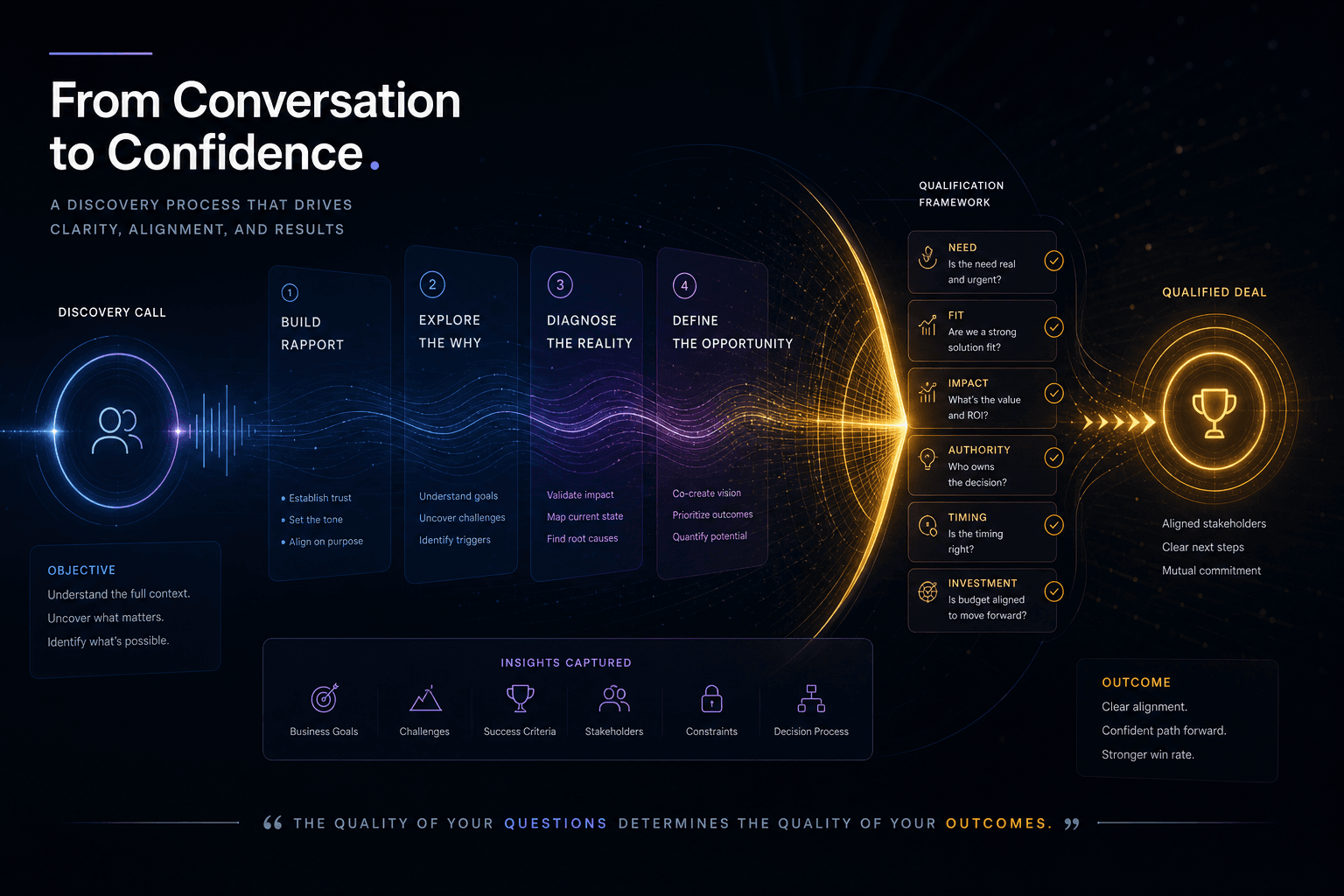
The Discovery Call Template I Use to Close High-Value Custom Web Projects
The exact discovery-call structure I run to close high-value custom web projects — opening, qualifying questions, budget surfacing, and the close.
A SaaS Landing Page Redesign That Doubled Trial Signups — Directed Entirely Through Prompts and Reference Media
How I directed a complete SaaS landing page redesign using only prompts, screenshots, and brand context—no manual coding—and doubled trial signups in 30 days.

AutoSEO: How I Prompted an Autonomous SEO Agent Loop with Lighthouse Audits
Point an AI agent at a deployed site, give it a single Lighthouse scalar to maximize, and let it ratchet validated SEO wins into git overnight. Here is the full AutoSEO architecture.